Blog
How to Combine Two Columns in Excel: Complete Guide to Merging Data
 Sik Yang · Feb 8, 2026
Learning how to combine two columns in Excel is one of the most common spreadsheet tasks. Whether you're merging first and last names, combining split address fields, or creating product codes from separate identifiers, you need the right approach. The wrong method can cause data loss, broken sorting, and filtering issues. This guide shows you proven methods to combine text from two Excel cells while avoiding common pitfalls.
Cell Merge vs Excel Concatenate: They're Completely Different
When thinking about how to combine two columns in Excel, many people reach for the [Merge & Center] button in the Home tab. This feature combines multiple cells into a single larger cell, but Excel keeps only the upper-left cell's value and deletes everything else. Merge two cells containing "Johnson" and "Emily," and only "Johnson" survives—"Emily" disappears. Merged cells break sorting (range selection fails), filtering, and pivot table creation.
Formula-based concatenation methods work differently. The & operator, CONCAT, and TEXTJOIN functions keep your original cells intact while combining text into a separate column. This preserves 100% of your data, letting you modify or revert changes anytime. For professional work merging names or addresses, always use formulas to merge columns excel without losing data. Save cell merging for visual layout needs like report titles or section headers.
Quick Excel Concatenate with the & Operator
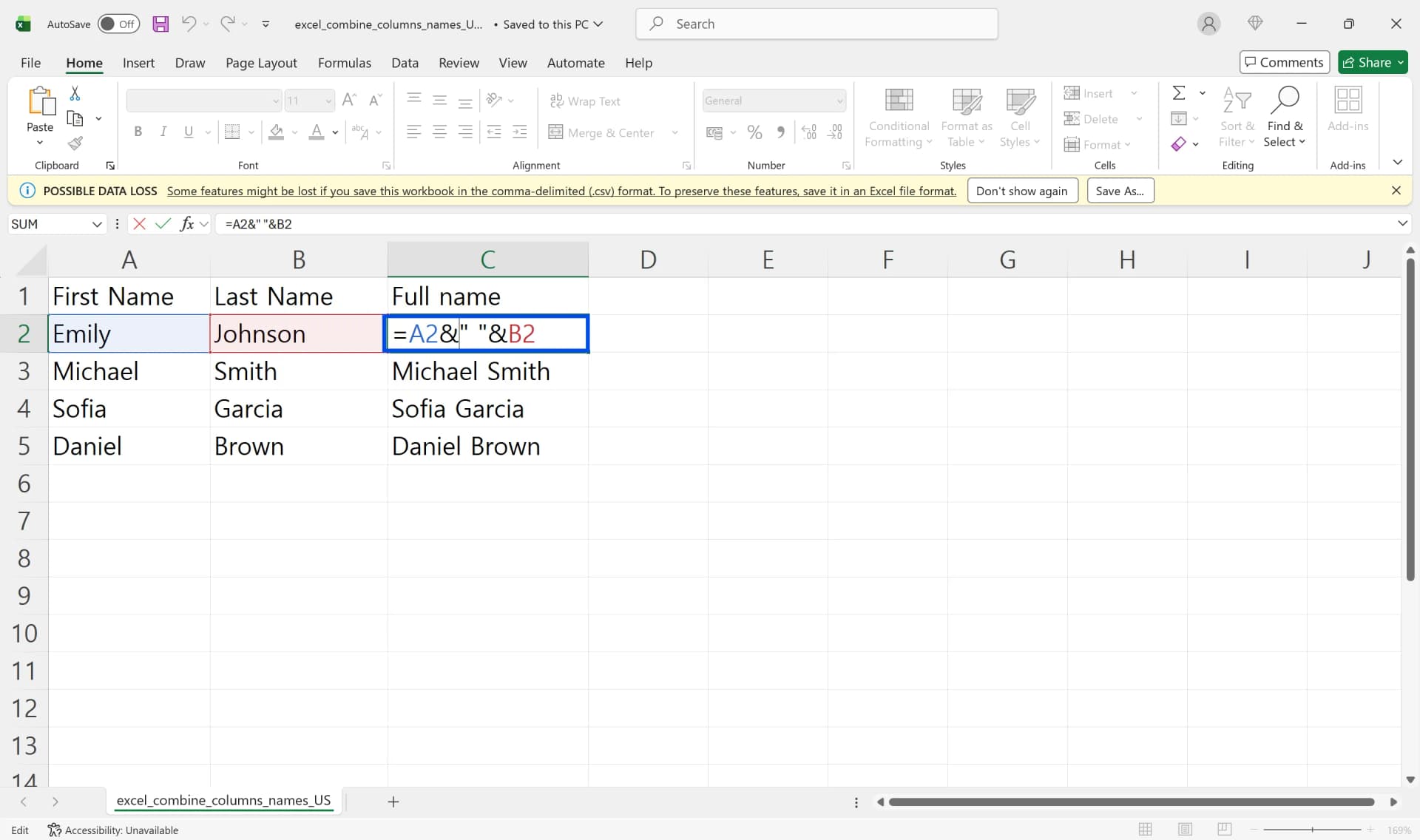
The easiest way to combine two columns in Excel is with the & operator. When first names are in column A and last names in column B, typing =A2&B2 in column C immediately joins both values. However, this creates "EmilyJohnson" without any space—difficult to read.
1. To add space between columns, use =A2&" "&B2 with a space inside the quotation marks. The result now displays as "Emily Johnson."
2. For comma or other separators, write =A2&", "&B2 to get "Emily, Johnson" format.
3. To apply the formula down, double-click the bottom-right corner of cell C2 or drag it down. Your formula applies to all data at once.
Before and After Combining Columns
Here's how the & operator combines data from two columns:
| First Name (A) | Last Name (B) | Excel Formula | Full Name (C) |
|---|---|---|---|
| Emily | Johnson | =A2&" "&B2 | Emily Johnson |
| Michael | Smith | =A3&" "&B3 | Michael Smith |
| Sofia | Garcia | =A4&" "&B4 | Sofia Garcia |
The & operator is intuitive and fast for 2-3 fields. When you need to merge many columns, formulas get long and hard to manage.
Merge Columns Excel with CONCAT Function
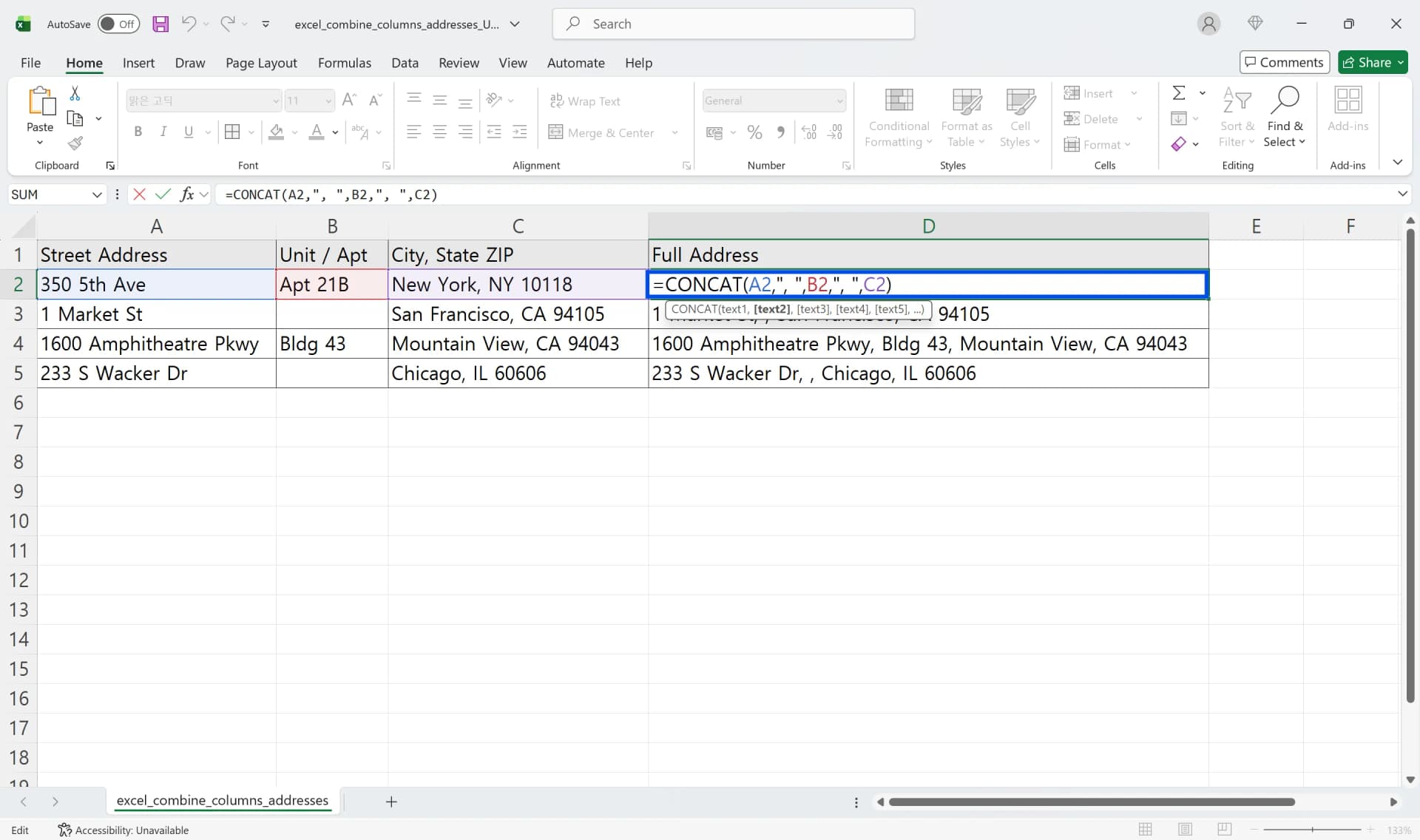
CONCAT is a powerful function that combines multiple cells or ranges at once. Merging Street Address (column A), Unit/Apt (column B), and City, State Zip (column C)? Write =CONCAT(A2,", ",B2,", ",C2) to get "350 5th Ave, Apt 21B, New York, NY 10118."
CONCAT lets you specify continuous ranges like =CONCAT(B2:D2), making long formulas shorter. But you still add separators manually between each argument. This gets tedious when you have many columns or blank cells. For these situations, TEXTJOIN is far more efficient.
TEXTJOIN: Automatically Handle Empty Cells
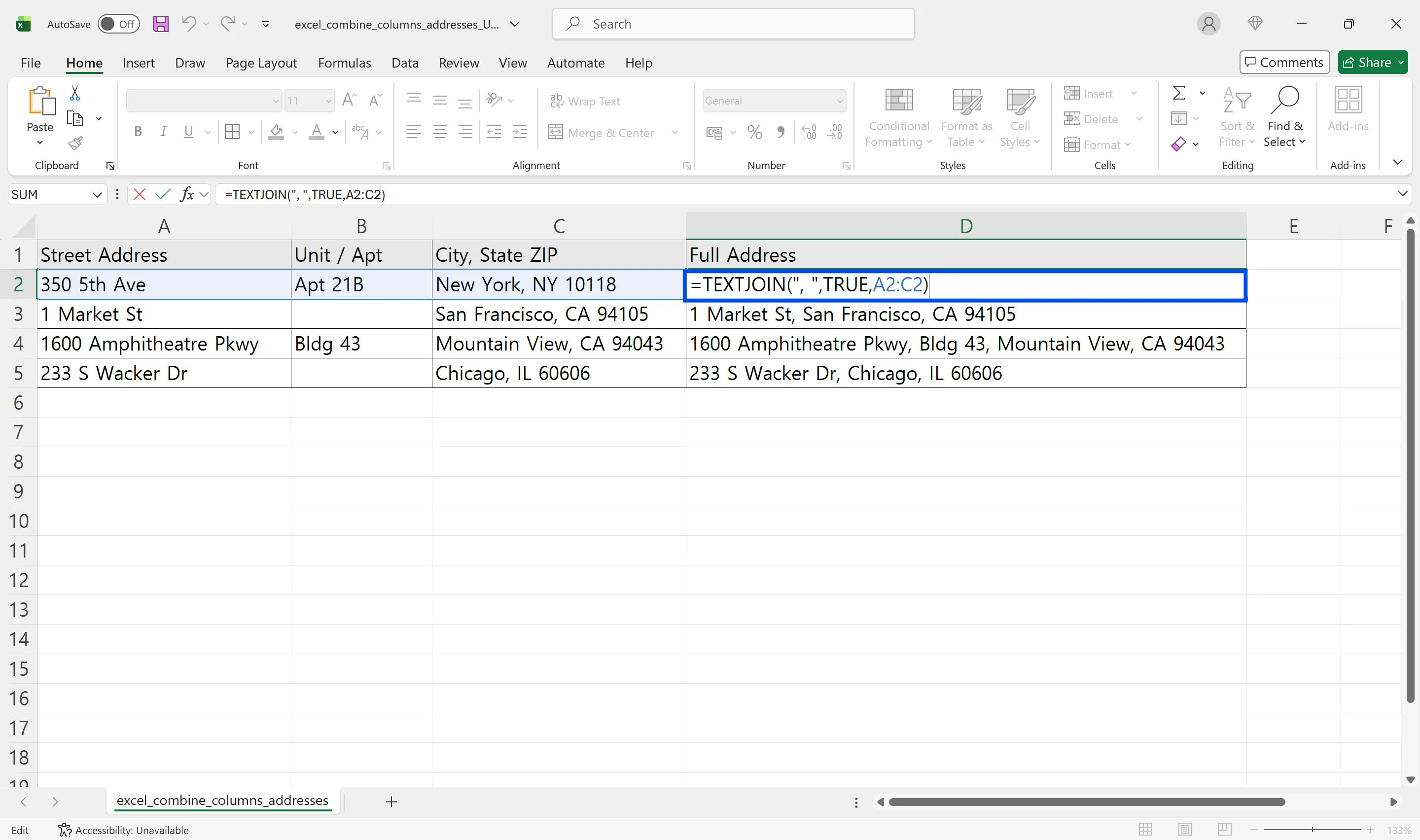
TEXTJOIN is the most powerful function to combine two columns in Excel. The syntax is =TEXTJOIN(delimiter, ignore_empty, text1, text2, ...). Specify your separator (comma, space, etc.) once in the first argument, and it automatically applies between all cells. Set the second argument to TRUE to skip blank cells without duplicate separators.
In real-world work, address data often has missing apartment numbers or suite details. =TEXTJOIN(", ",TRUE,A2:C2) connects only cells with values from A2 to C2 with commas, preventing issues like "1 Market St, , " with double commas. Joining product codes with hyphens? Combining email addresses with semicolons? TEXTJOIN handles it cleanly in a single line.
TEXTJOIN works in Office 365 and Excel 2019 or later. Earlier versions require the & operator or CONCAT to merge columns excel without losing data.
Comparing Three Methods to Combine Text from Two Excel Cells
| Excel Formula | Advantages | Disadvantages | Recommended When |
|---|---|---|---|
| & Operator | Simple and intuitive | Gets unwieldy with long formulas | Combining 2-3 fields |
| CONCAT | Can specify ranges | Must input separators repeatedly | Fixed multiple fields |
| TEXTJOIN | Auto-handles blank cells | Requires Excel 2019+ | Variable fields, many blanks |
Use this comparison to pick the right method quickly. TEXTJOIN excels at complex scenarios, while the & operator is faster for quick, simple merges.
Common Mistakes When You Combine Two Columns in Excel
Missing or Duplicate Spaces
Combining "Emily" and "Johnson" with =A2&B2 produces "EmilyJohnson" stuck together. You must explicitly add a separator like " ". Conversely, if cell B2 already contains a space and your formula adds another, you get "Emily Johnson" with double spacing. Always check source data for existing spaces before merging.
Duplicate Separators with Empty Cells
Setting ignore_empty to FALSE in TEXTJOIN treats blank cells as positions, creating "Red, , Blue" with duplicate commas. If this happens even with TRUE, invisible space characters may be hiding in cells. Use the TRIM function to remove leading/trailing spaces before applying your concatenate formula.
Date or Number Format Errors
Excel concatenate results are always text, so dates or numbers lose formatting when merged directly. Dates display as serial values like "45123" instead of readable dates. Convert them first: TEXT(A2,"yyyy-mm-dd") maintains date format. For numbers, use TEXT(C2,"0000") to pad with zeros. This matters critically when merging product codes or account numbers where leading zeros count.
How to Merge Columns Excel Without Losing Data
The golden rule for combining two columns in Excel: never touch your original columns.
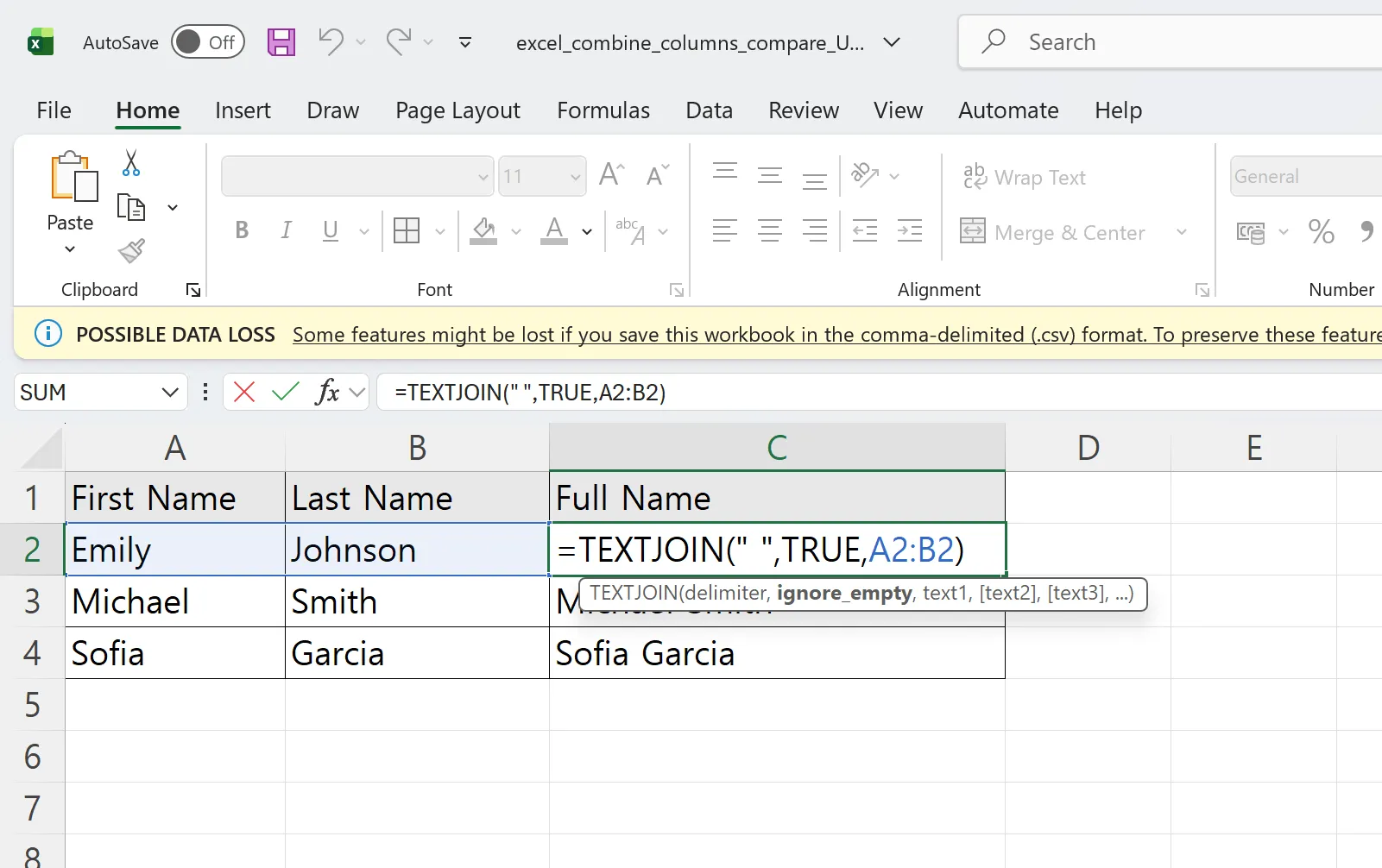
1. Add a new column to the right. First names in column A and last names in column B? Create a "Full Name" header in column C.
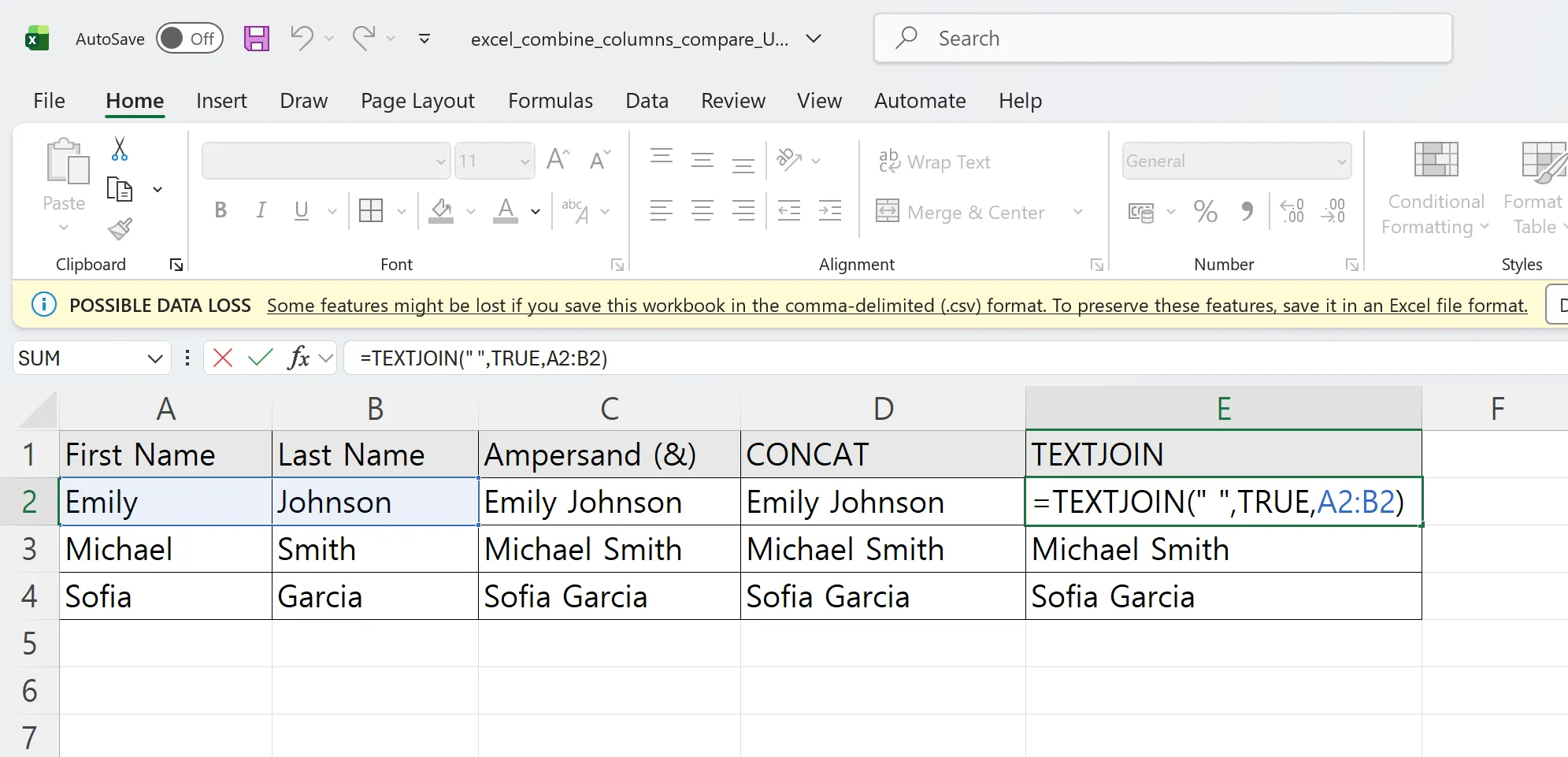
2. Enter your formula in cell C2. Write =A2&" "&B2 or =TEXTJOIN(" ",TRUE,A2:B2) to combine text from both cells.
3. Apply the formula down. Select cell C2 and double-click the bottom-right corner, or drag down to auto-fill.
After merging columns, copy column C and use "Paste Values" to remove formulas, leaving only results. Hide original columns A and B or move them to another sheet. This approach ensures you can always undo mistakes or adjust your formula to re-combine data differently.
Additional Tips for Combining Columns in Excel
Conditional Merging
Combine IF with concatenation to merge data only when conditions are met. To include middle names only when present: =IF(B2<>"",A2&" "&B2&" "&C2,A2&" "&C2). This formula joins all three parts when a middle name exists, or only first and last names when it's blank.
Reference Data from Other Sheets
You can combine text from two Excel cells across different sheets. Use =Sheet2!A2&" "&Sheet2!B2 with the sheet name and exclamation point. This consolidates data scattered across multiple worksheets.
Preserve Thousand Separators
To maintain comma formatting when merging amounts or quantities, use TEXT(D2,"#,##0"). Creating "Product: 1,500,000 units" format? Write =A2&": "&TEXT(B2,"#,##0")&" units". This preserves number formatting while combining cleanly with text.
Excel Combine Columns FAQ
Q. When combining two columns in Excel, should I use & operator or CONCAT?
A. Stick with the & operator if you're only merging 2-3 fields—it's simpler. Use CONCAT when you have many fields or might add columns later.
Q. My TEXTJOIN still shows duplicate separators even when ignoring empty cells.
A. Cells that look empty may contain hidden space characters. Try =TEXTJOIN(",",TRUE,TRIM(A2:C2)) to nest TRIM, or clean your source data first.
Q. Sorting and filtering don't work after combining columns.
A. You probably used cell merge instead of formulas. Unmerge cells and redo using the concatenation methods above.
Q. I get #REF! error when moving merged results to another file.
A. Your formulas still reference source cells. Copy the merged column, use "Paste Values" to remove formulas, then move the data.
Q. What's the most popular way to combine two columns in Excel?
A. TEXTJOIN dominates professional settings because it handles blank cells and separators efficiently. Excel 2016 or earlier? You'll need the & operator or CONCAT instead.
Automate Excel Data Merging with Cicely AI
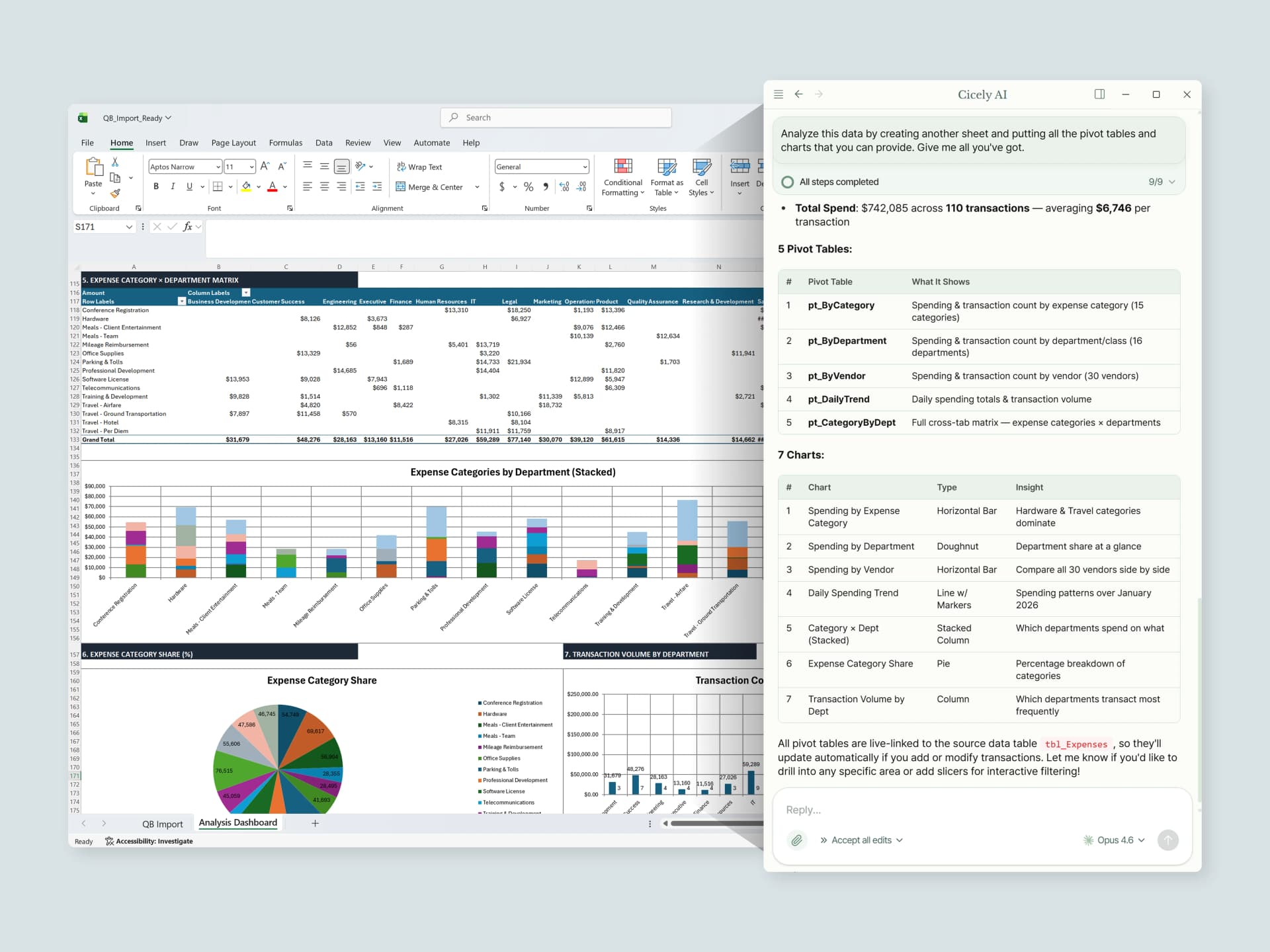
You've learned how to combine two columns in Excel manually—now automate it. Stop writing TEXTJOIN formulas repeatedly, checking for blank cells, and copying data from 100 files one by one.
Cicely AI is a Desktop-native AI Coworker built specifically for Excel. Just tell Cicely what you need—"Merge columns A and B with a space into column C," "Clean this address data and remove duplicates"—and watch it work in real-time on your local files. No memorizing complex formulas or writing macros required.
Everything runs locally on your PC. No file uploads. No browser tools.