Blog
Convert Excel to PDF Without Cut-Off Tables
 Sik Yang · Dec 15, 2025
You finish an important report or quotation in Excel and export it as a PDF.
Then you open the file… and the table is cut off, text looks broken, and the layout is a mess.
This happens far more often with Excel than it does with Word or PowerPoint.
Converting Excel to PDF frequently causes formatting issues unless specific settings are adjusted.
This guide explains why Excel PDF problems occur, how to fit Excel to one page in a PDF without cutting off content, and how to convert multiple Excel sheets to PDF at once.
Why Excel to PDF Conversion Creates Problems
Excel and Word are built on completely different concepts, which is why Excel to PDF issues are so common.
Word is designed around fixed page sizes such as A4 or Letter from the start.
Excel, on the other hand, is an endless grid built for data, not pages.
Unless you explicitly tell Excel where a page starts and ends, it does not recognize page boundaries. During PDF export, Excel simply splits data wherever it thinks the page should end.
This structural difference is the main reason Excel to PDF formatting issues and unexpected cut-offs occur.
Common Excel to PDF Cut-Off Problems
These are the three most common frustrations office workers face when opening Excel PDFs.
Right column disappears: The rightmost "Notes" or "Amount" column cuts off and prints on the next page. Classic Excel PDF cut-off.
Row height cuts text: Text looks fine on screen. In PDF, the bottom of text is cut off.
Unexpected blank pages: Empty rows or columns get included in print area. Your content is followed by dozens of blank pages.
How to Convert Excel to PDF Without Cutting Off Content
If you want to fit a trimmed document neatly on one page, make sure to check these three before exporting.
These are the key settings for Excel to PDF conversion without trimming.
Set Print Area to Remove Blank Pages
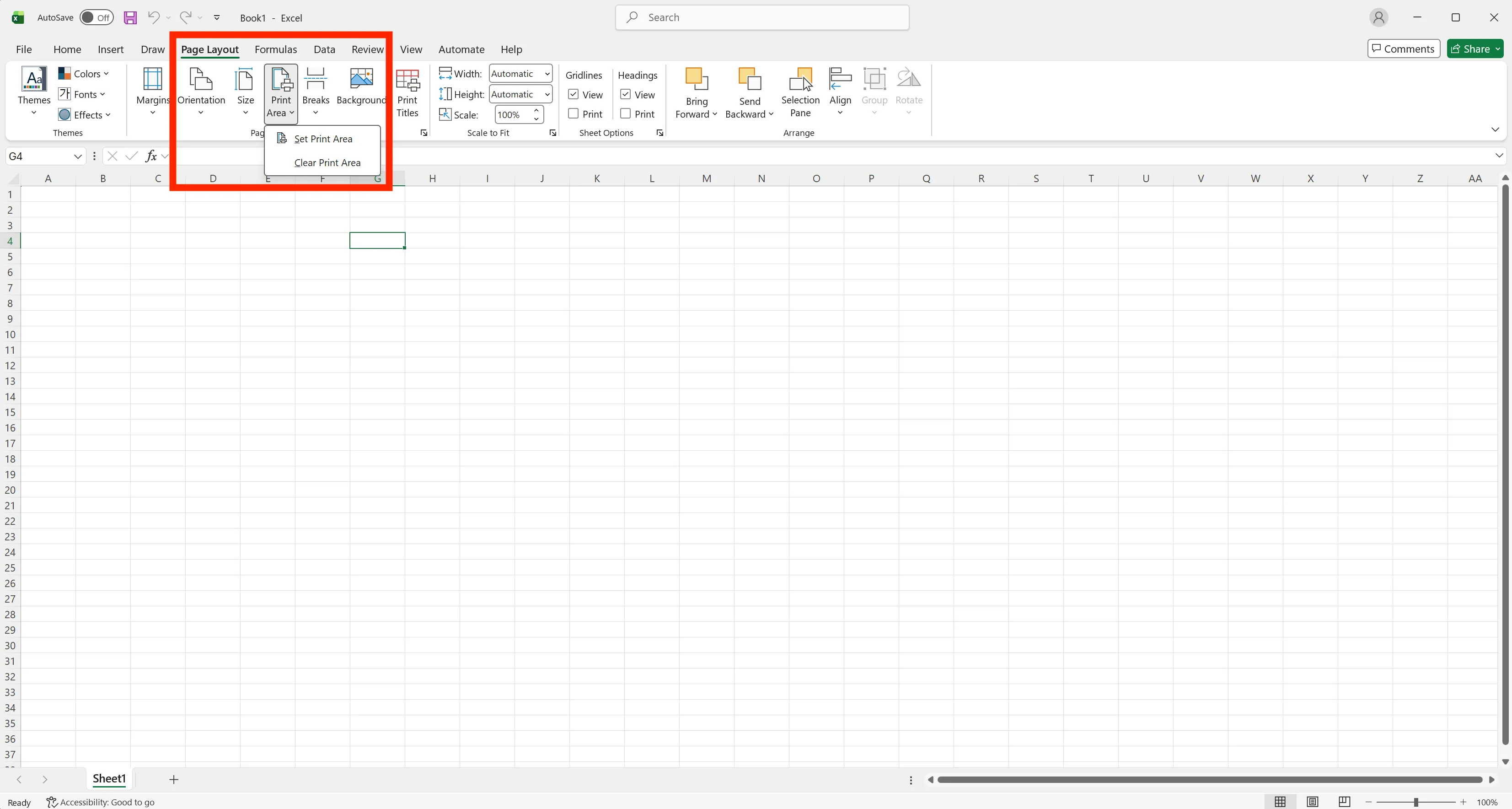
Set your print area manually.
- Drag to select the entire table you want to print
- Go to Page Layout > Print Area > Set Print Area
- Now only your selection gets included in the PDF—no blank page errors
Scale to Fit One Page
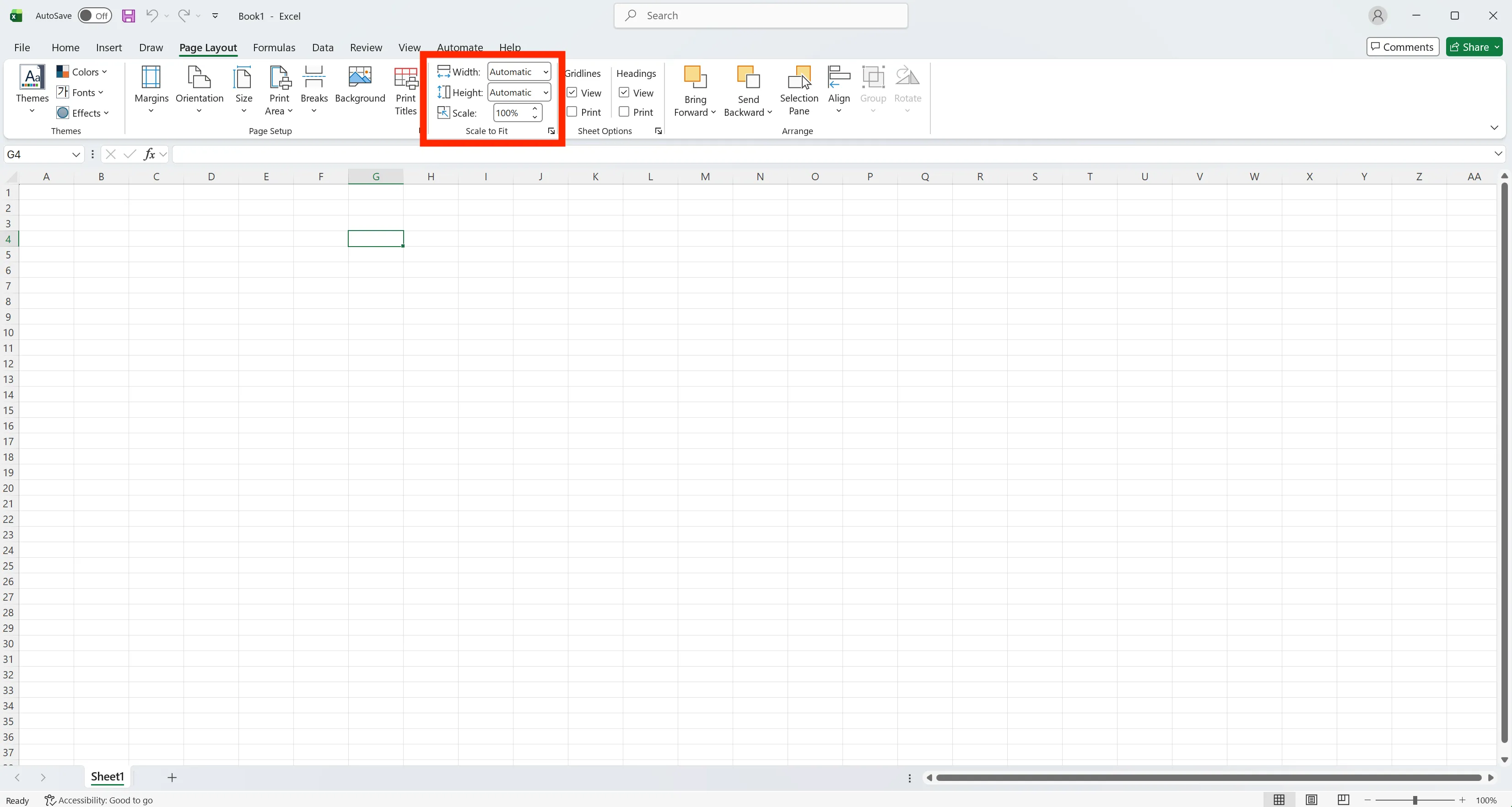
Is your table too wide and getting cut off? Scaling it to fit one page solves most cases.
- Check Page Layout tab > Scale to Fit group
- Change Width to 1 page (keep Height on Automatic)
- Excel automatically applies scaling. Your table won't cut off and fits on one page
Prevent Text Cut-Off in PDF
Excel PDF text cut-off happens because screen fonts and print fonts differ slightly.
Check if cells with lots of text have "Wrap Text" enabled.
Key tip: Even if text looks perfect on screen, increase the row height by an extra 10–20%. This prevents text from getting crushed or cut off in PDF.
How to convert multiple Excel sheets to PDF at once
When you have multiple sheets in an Excel file (e.g., January, February, March sheets), it's a waste of time to save them one by one as PDFs.
Here's how to convert them all at once.
- Click on the first sheet you want to convert.
- Hold the Shift key and click the last sheet (or press the Ctrl key and select only the sheets you want).
- Go to [File] > [Save As] > Select the file format as [PDF].
- Click the [Options] button at the bottom of the save window → Check 'Selected sheets'.
Free sites and tools for Excel PDF conversion
If you encounter PC settings issues that prevent Excel export, use external tools. Here are free Excel PDF conversion methods.
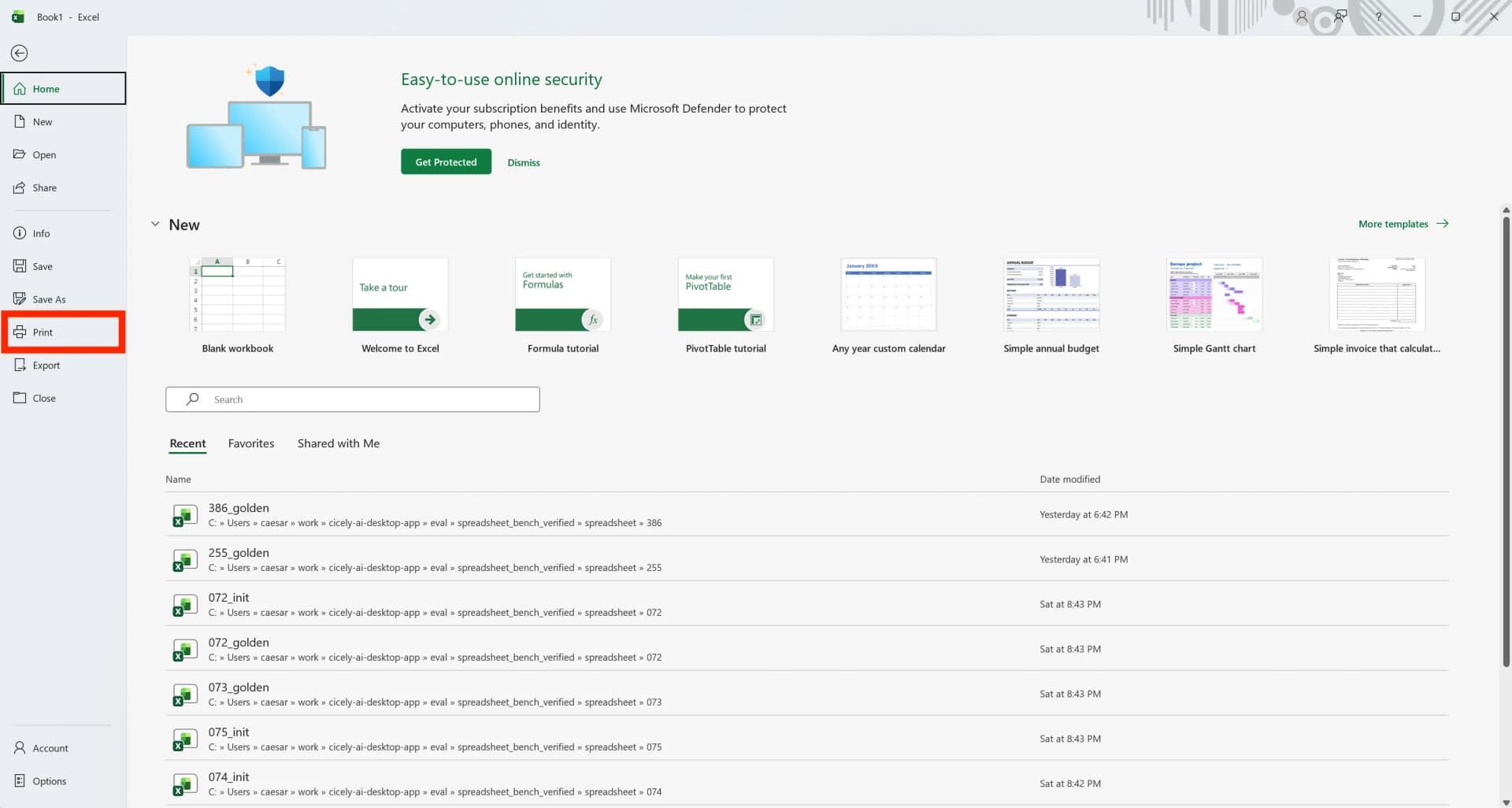
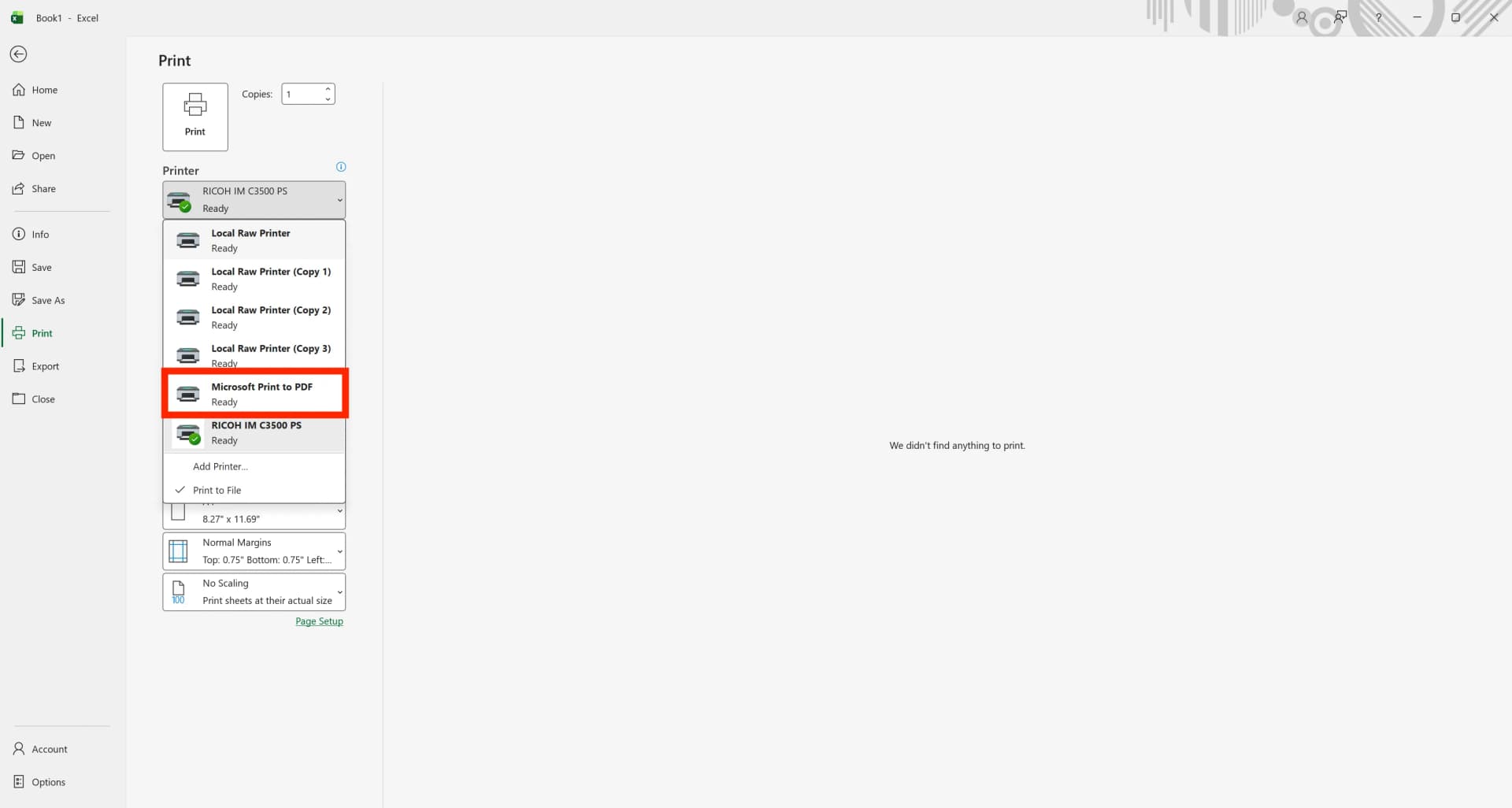
- Microsoft Print to PDF (Export to PDF): Select this from the print printer list and print to save as a PDF. Path: File > Print (shortcut Ctrl + P)
- SmallPDF / I Love PDF: Can be immediately converted on the website when in a rush.
- Google Sheets: Upload the Excel file to Google Drive, open it, and use File > Download > PDF. Note that complex formatting may change during import.
Pre-Export Checklist for Excel to PDF
Check this list before sending your file to catch the most common issues.
Must check before submitting:
- Page Break Preview: Go to View > Page Break Preview. Make sure all content is inside the thick blue solid lines
- Headers/Footers: Check if page numbers or dates overlap with your table
- Hidden columns: In Ctrl+P preview, check if hidden rows or columns make calculations look wrong
- Open final PDF: Don't close immediately after saving. Open the PDF file and zoom to 100% to check for broken text
Excel to PDF conversion isn't hard once you know how it works.
Remember "Print Area" and "Width 1 page" settings. These solve most cut-off problems.
Work More Efficiently in Excel with Cicely AI
Cicely AI is a desktop-native AI coworker for Excel on Windows. It helps you clean up data, fix formulas, reorganize worksheets, and automate repetitive spreadsheet work with natural language while keeping files local on your PC.
Everything runs locally on your PC. No file uploads. No browser tools.