Blog
Edit, Delete, and Build Dynamic Drop-downs
 Mike Yi · Jan 4, 2026
Have you ever had your Excel filters break because one column contains "In Progress," "in progress," and "In-Progress" all at once?
These small inconsistencies can completely break filtering, formulas, and pivot tables.
Excel drop-down lists solve this problem by forcing users to choose from predefined values, eliminating typos and keeping your data consistent.
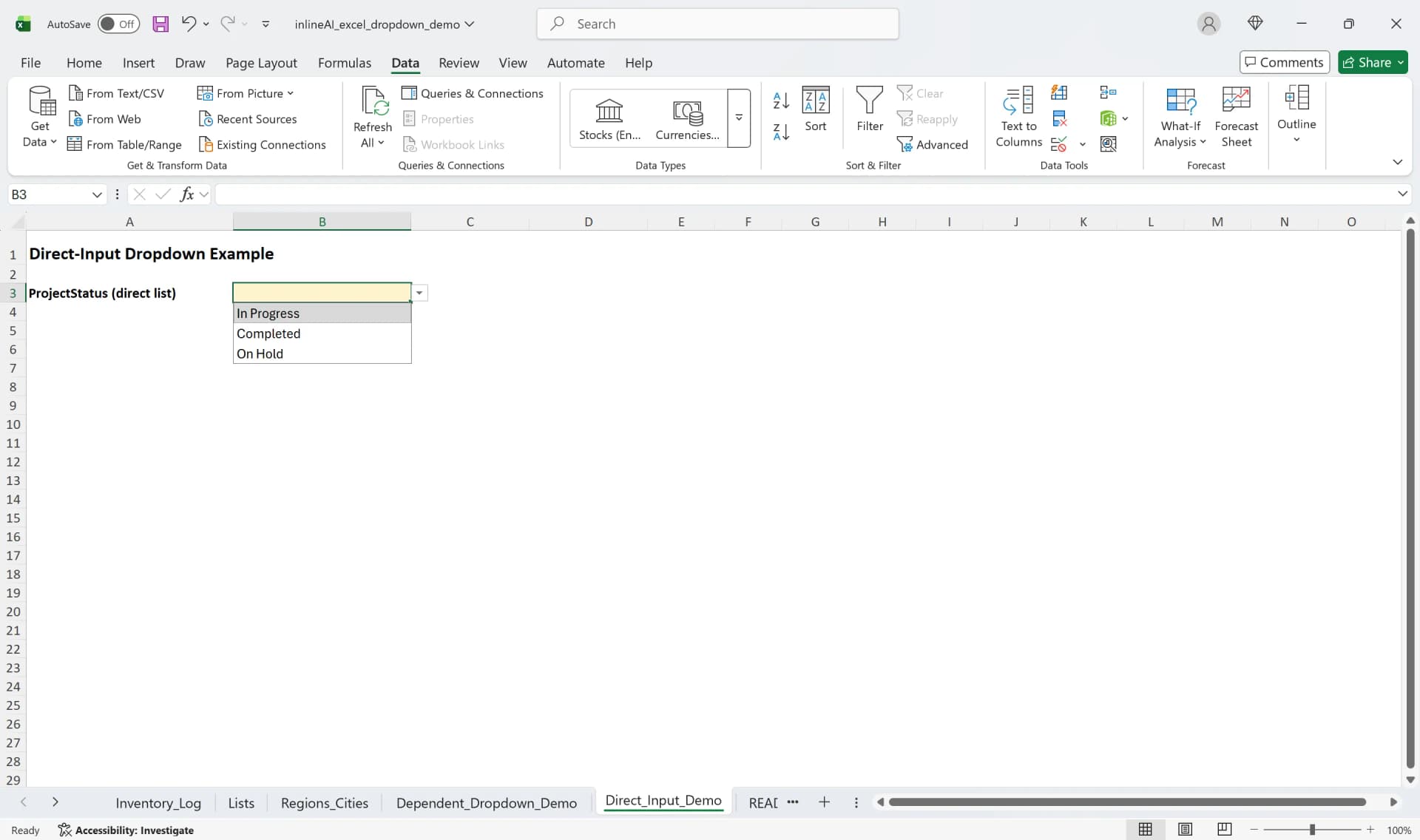
Why You Need Excel drop-down Lists
An Excel drop-down list restricts cell input to predefined values only. It’s created using Excel’s Data Validation feature and is essential whenever consistent input matters.
Common business applications include department selection (Sales, Marketing, Planning), product category classification (Electronics, Clothing, Food), project status tracking (In Progress, Completed, On Hold, Canceled), and approval status (Approved, Rejected, Under Review).
Drop-down lists are essential whenever you need users to choose from a fixed set of options.
Using Excel's data validation dropdown features prevents repetitive input errors and maintains data consistency. This is especially valuable in shared workbooks where multiple people collaborate, as it standardizes input rules and makes filtering, sorting, and pivot table operations much more reliable.
How to Create a Drop-Down List in Excel Using Data Validation
The most common method to create a drop-down list in Excel is using the data validation feature.
Create a Drop-Down List in Excel Using Direct Entry
This approach works well when you have a few items that rarely change.
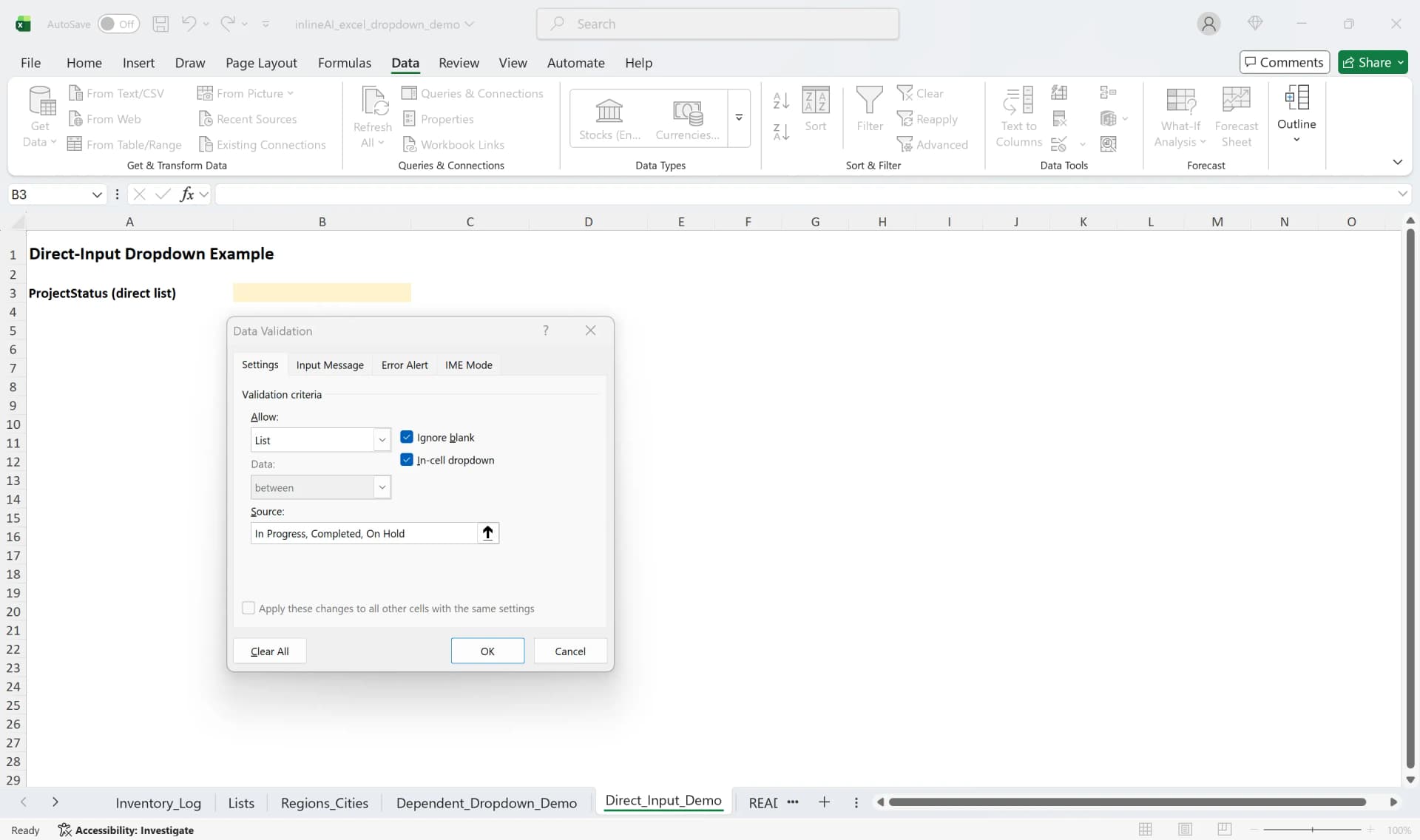
- Select the cell where you want to create a drop-down list in Excel (e.g., H14).
- Click the "Data Validation" button on the Data tab.
- In the Settings tab, select "List" from the Allow dropdown.
- Enter items separated by commas in the Source field (e.g., In Progress, Completed, On Hold).
- Ensure "Ignore blank" and "In-cell dropdown" are checked.
- Click OK to create the dropdown arrow in the cell.
The direct entry method is simple to set up, but you'll need to reopen data validation every time you want to modify the list items.
Create a Drop-Down List in Excel Using a Cell Range
If your list items already exist in other cells, referencing that range is more efficient.
- Select the cell where you want the drop-down list.
- Go to the Data tab and select "Data Validation."
- Choose "List" from the Allow dropdown.
- Click the range selector button next to Source and drag to select the range containing your list items (e.g., $G$2:$G$6).
- Make sure dollar signs ($) appear before both the column letter and row number for absolute referencing.
- Click OK to create the drop-down list in Excel.
Absolute referencing ($) locks the range so it won't change when you copy the cell or move formulas. This method is especially useful when applying the same dropdown to multiple cells, since updating the source range automatically updates all dropdowns.
How to Edit a drop-down List in Excel
Sometimes you need to modify drop-down list items: changing model numbers to product names, adding new status options, or removing obsolete choices.
How to Edit a Drop-Down List Using Direct Entry
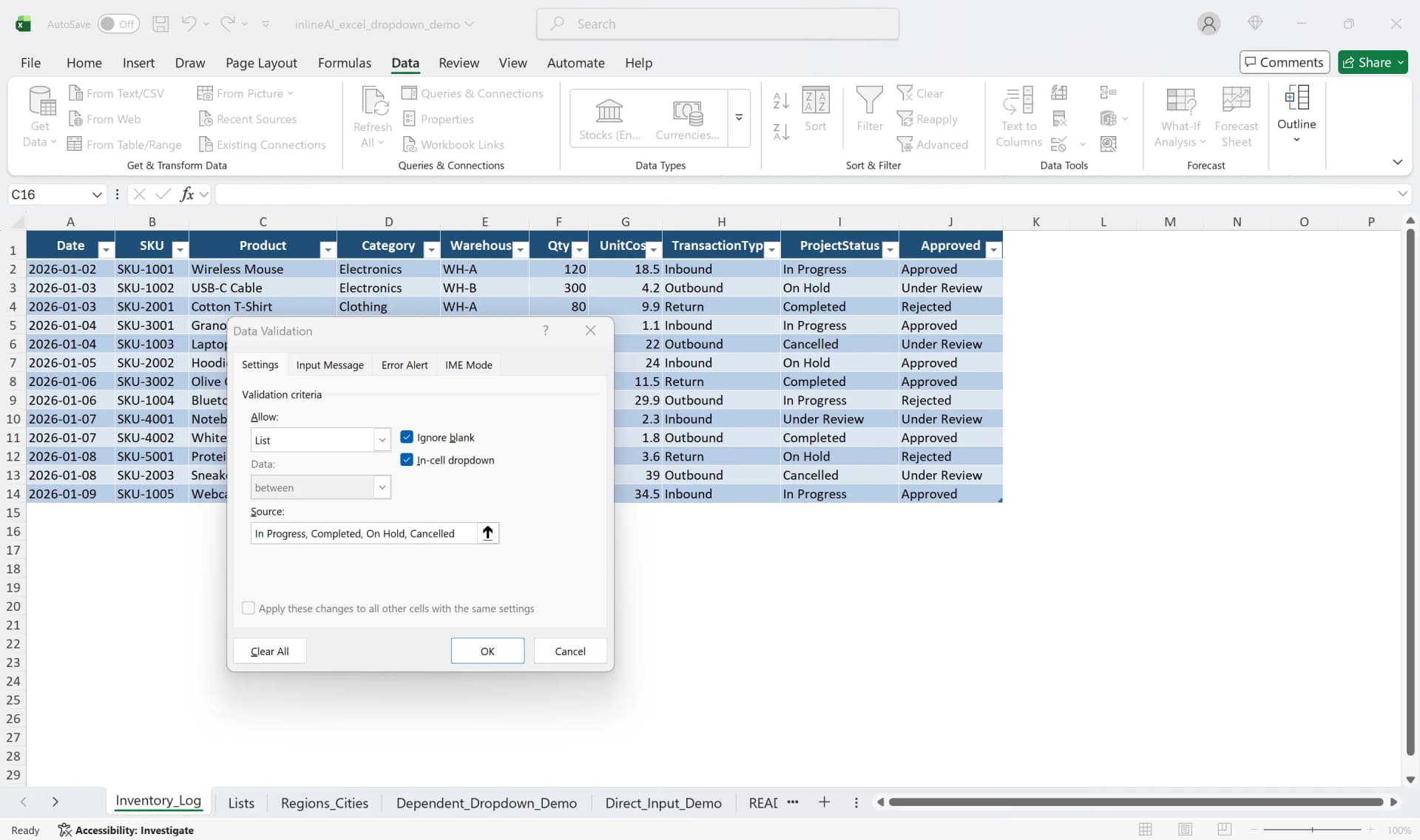
- Select the cell with the drop-down list in Excel.
- Click "Data Validation" in the Data tab again.
- Edit the Source field (e.g., In Progress, Completed, On Hold, Cancelled).
- Click OK to apply the changes immediately.
How to Edit a Drop-Down List Using a Source Range
When using the range reference method, you have two ways to edit the list.
- Select the cell with the drop-down list.
- Go to Data Validation in the Data tab.
- Change the Source range (e.g., expand to =$G$2:$G$7).
- Alternatively, simply edit the cell values in the referenced source range (G2:G6).
Use the "Apply these changes to all other cells with the same settings" option to update multiple cells sharing the same validation rule. This feature is extremely useful when you need to update many cells at once.
How to Remove drop-down List in Excel
When you no longer need a drop-down list in Excel or need to fix an incorrect setup, you can easily remove it. Simply deleting the cell content won't remove the dropdown setting. You need to use the "Clear All" function.
- Select the cell(s) to remove the drop-down list from.
- Click "Data Validation" in the Data tab.
- Click the "Clear All" button in the bottom left of the dialog box.
- Click OK to remove the dropdown arrow and return to normal text input.
Removing a drop-down list in Excel preserves any values already entered in the cells. Only the combo box functionality is removed while data remains intact. To remove drop-down lists in Excel from multiple cells simultaneously, hold Ctrl while selecting cells, then execute "Clear All." You can then press Delete to clear the cell contents if needed.
Create Dynamic drop-down Lists with Auto-Update
Basic Excel drop-down lists require manual range adjustments whenever you add items. This becomes inefficient when lists change frequently.
Combining Excel's Table feature with the INDIRECT function creates dynamic dropdowns that update automatically.
Convert List Data to a Table
- Remove any existing drop-down lists using "Clear All."
- Place your cursor in the list data range (e.g., G2:G6).
- Select "Table" from the Insert tab or press Ctrl+T.
- Check "My table has headers" and click OK.
Name Your Table
When the table is selected, go to the Table Design tab, change the table name to something meaningful (e.g., Regions), and press Enter. Table names can't contain spaces and must be referenced by the INDIRECT function.
Set Up drop-down with INDIRECT Function
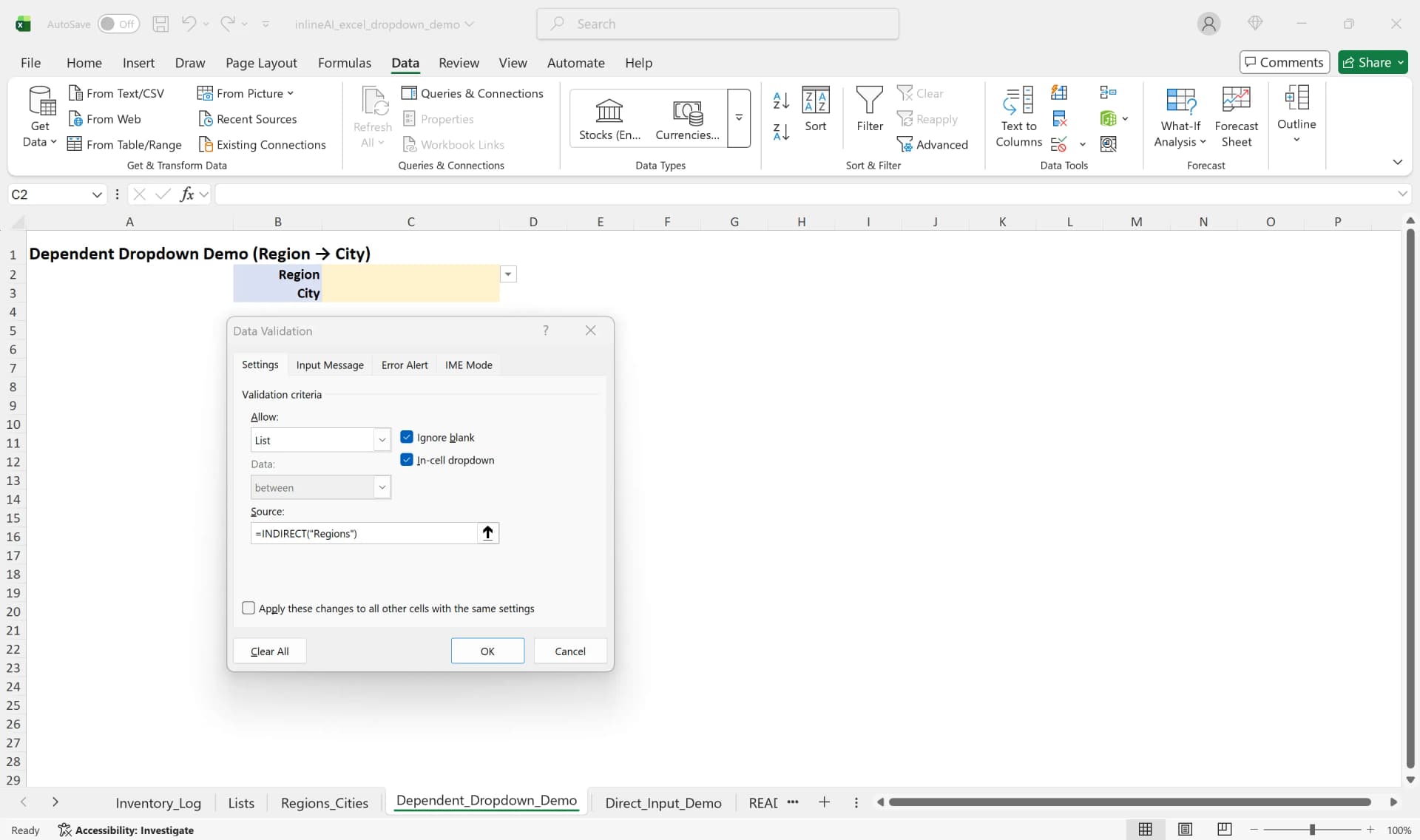
- Select the cell for your drop-down list and open "Data Validation."
- Choose "List" and enter the formula
=INDIRECT("Regions")in the Source field. - Click OK.
The INDIRECT function returns the range indicated by the text ("Regions"). Since tables automatically expand when data is added, your Excel data validation dropdown updates without any manual adjustment.
When you add "Florida" to your list sheet, the table range expands automatically. Clicking the dropdown arrow immediately shows Florida in the list. Delete "Nevada" and it disappears from the dropdown instantly. This method is essential for inventory management, customer databases, and product catalogs where items are frequently added or removed.
Create Dependent drop-down Lists in Excel
You can create dependent drop-down lists where the second list changes based on the first selection. For example, selecting a region displays only cities in that region. This is invaluable for category-subcategory selections, department-employee pairings, and similar workflows.
Prepare Dependent Dropdown Data
- Prepare city list data for each region (e.g., California, Texas).
- Convert each city list to a table using Ctrl+T.
- Name each table exactly matching the region name (table names: 'California', 'Texas', 'NewYork').
Important: Table names must match the items in your first dropdown exactly. If your region dropdown shows 'California', the table name must be exactly 'California' for the INDIRECT function to work properly.
Set Up Dependent Dropdown Formula
- Select the cell for your second drop-down list and open "Data Validation."
- Choose "List" and enter the formula
=INDIRECT(D3)in the Source field (where D3 is your region selection cell). - Click OK.
Now when you select 'Texas' in cell D3, the second dropdown shows only Texas cities (Houston, Dallas, Austin). Select 'California' and it displays only California cities (Los Angeles, San Francisco, San Diego). Adding new cities to any region's list automatically updates the dropdown.
Dynamic drop-down lists are useful for department-employee selection (selecting Sales shows only sales team members), product category classification (selecting Electronics shows only electronic subcategories), and project status management. Combining Excel functions and formulas lets you efficiently manage complex data entry forms. This functionality is essential for inventory systems, customer databases, and HR information systems where items are regularly added.
Excel drop-down List FAQ
Q. Can I select multiple items in an Excel drop-down list?
A. Basic data validation only allows you to select one item at a time. Multiple selections require VBA macros.
Q. If I copy a cell with a dropdown, does the dropdown copy too?
A. Yes, copying a cell copies the drop-down list settings. To copy values only, use "Paste Special > Values."
Q. Is there a limit to how many items I can display in a dropdown list?
A. The direct entry method has a 255-character limit, while the range reference method has virtually no limit.
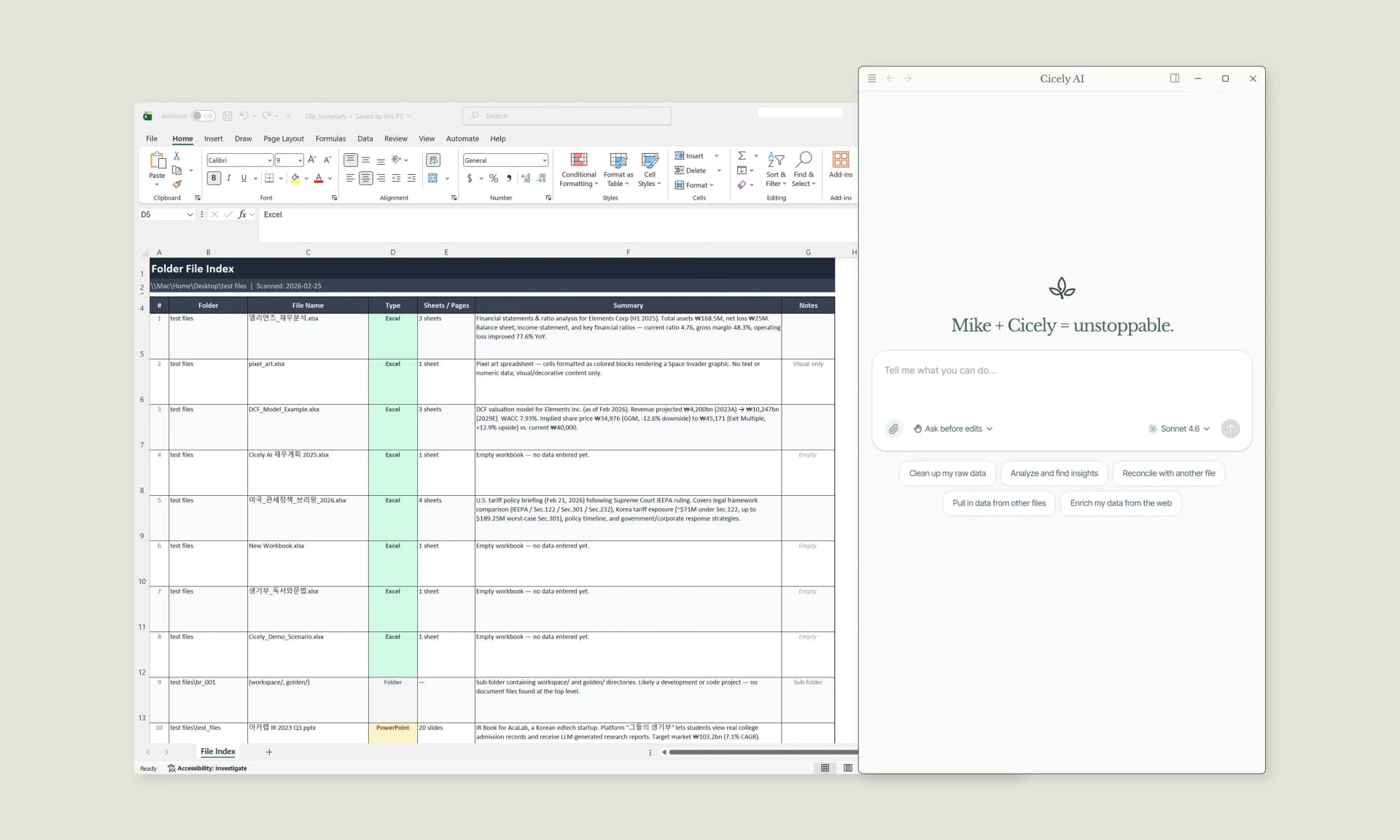
Stop Manually Building Drop-Down Lists. Let Cicely AI Handle Your Data Validation.
You've learned how to create drop-down lists manually. But when you're managing dozens of dropdowns across multiple workbooks, the manual setup becomes tedious.
Cicely AI is a desktop-native AI coworker for Excel. Tell Cicely what you need in plain English—"Create dependent dropdowns for regions and cities" or "Set up auto-updating product category lists"—and it handles the data validation setup while you review changes. Everything processes locally on your PC.
Everything runs locally on your PC. No file uploads. No browser tools.