Blog
How to Enable Excel Macros: From Security Warnings to Proper Settings
 Mike Yi · Feb 6, 2026
If you have ever searched how to enable macros in Excel, you are not alone. When you open a macro-enabled file, you may see a message saying "Security Warning: Macros have been disabled," and no matter how many times you click, the macro still does not run.
In recent versions of Excel, security policies have been significantly strengthened, and macros are now blocked by default. Simply toggling a setting is often not enough to resolve the issue.
This guide covers why Excel macros are blocked, what the Excel macro security warning actually means, and how to turn on macros in Excel on both Windows and Mac, step by step.
What Are Excel Macros and Why Are They Useful?
Excel macros allow users to automate repetitive tasks by executing predefined actions automatically. They are based on VBA (Visual Basic for Applications), and once set up, the same tasks can be repeated with a single button click or keyboard shortcut.
For example, creating daily reports in the same format, consolidating data from multiple worksheets, or applying formulas and formatting based on specific conditions can all be completed in seconds using macros. This makes Excel macros a powerful productivity tool for many professionals.
However, because macros execute code, they always require careful consideration from a security perspective.
Why Excel Macros Are Blocked by Default
The primary reason Excel blocks macros by default is security risk. Historically, macros have been a common delivery method for malicious code. In many cases, Excel files containing harmful macros were distributed via email attachments, and once a user clicked "Enable Content," ransomware or other malware would execute immediately.
To reduce these risks, Microsoft has continuously strengthened Excel's macro security policies. Today, macros in files from unknown or external sources are blocked by default.
If a macro does not run, it usually does not mean Excel is broken. It means Excel is doing exactly what it was designed to do from a security standpoint.
Understanding the Excel Macro Security Warning
When you open a macro-enabled Excel file, you will often see a yellow or red Excel macro security warning bar at the top of the window. A message like "Security Warning: Macros have been disabled" can be alarming, but it does not automatically mean the file is dangerous.
What Excel is really asking is: "Do you trust this file and the macros inside it?"
At this stage, Excel shifts the decision to the user: whether or not the macros should be allowed to run.

Even clicking "Enable Content" does not always allow macros to run in recent versions. Excel now evaluates multiple factors at once, including file location, file origin, and organizational security policies, not just the macro setting itself.
Excel Macros Not Working? Check the File Location First
One of the most common yet overlooked reasons Excel macros are not working is the file location. Excel files downloaded from websites or received as email attachments are treated as untrusted, even after being saved locally. In these cases, macros may remain blocked despite being enabled in settings.
On Windows, this can often be resolved by unblocking the file manually.
Right-click the Excel file, open Properties, and check the Unblock option at the bottom if it appears. After applying the change and reopening the file, macros will often run normally.
Stabilizing Macro Execution with Trusted Locations
If the unblock option is not available, or if you frequently use the same macro-enabled files, configuring a Trusted Location is a more reliable solution.
Files stored in trusted locations are automatically treated as safe, allowing macros to run without security warnings.
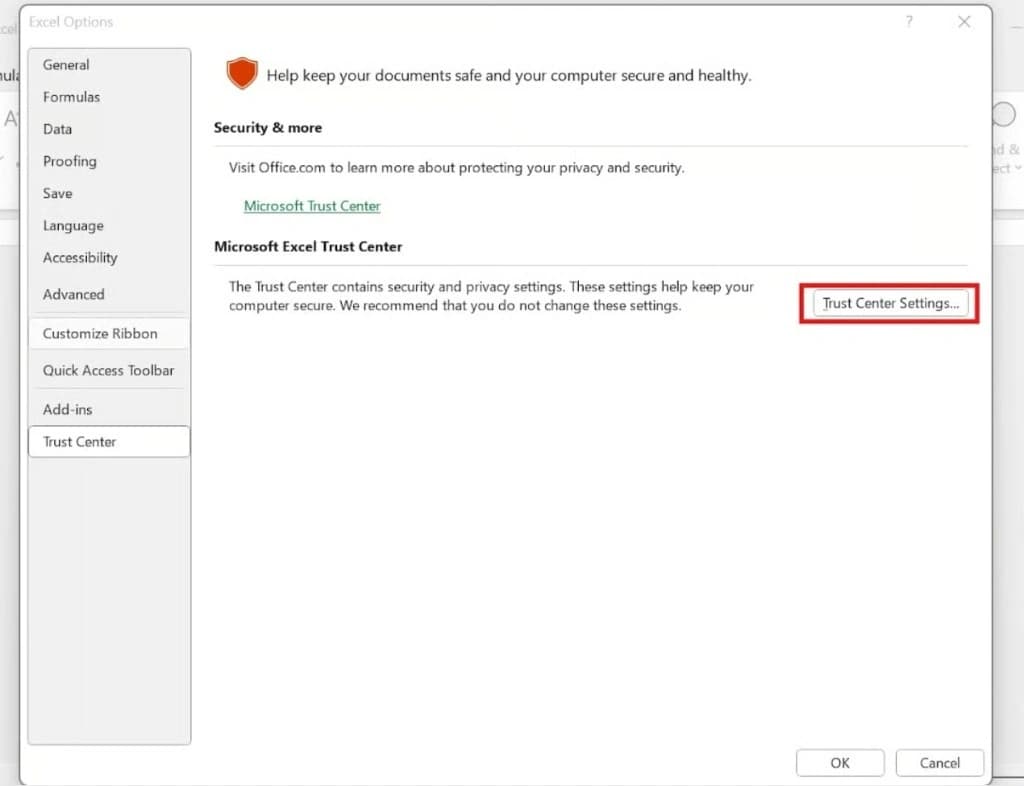
In Excel, go to File → Options → Trust Center → Trust Center Settings.
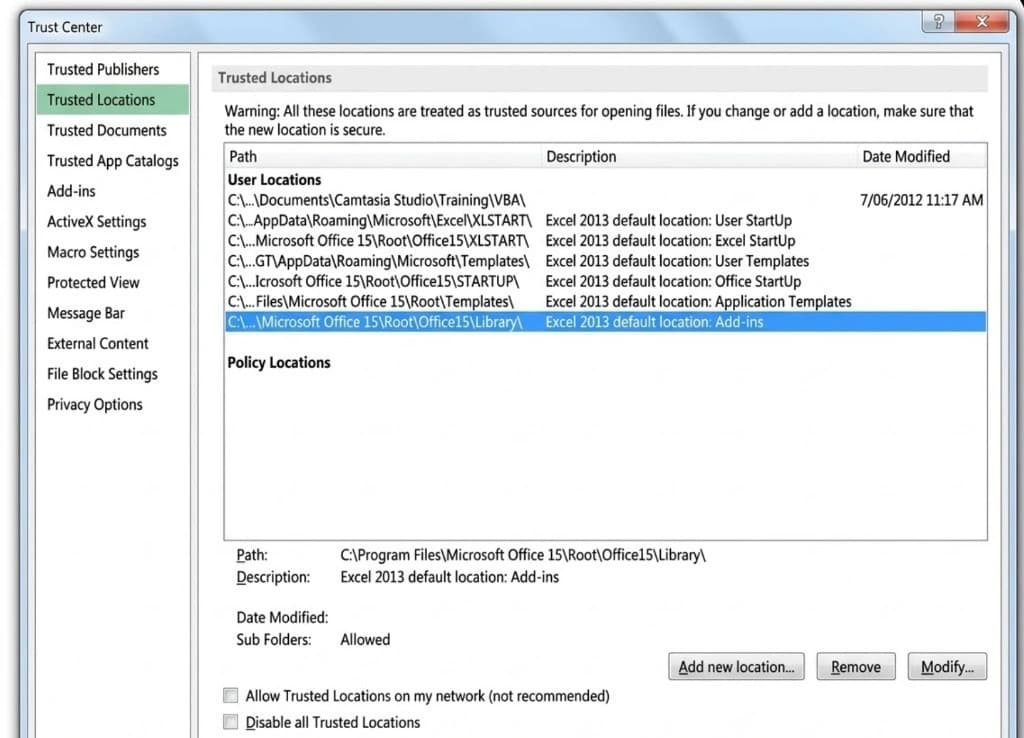
Under Trusted Locations, add the folder where your macro files are stored. Any Excel file saved in this folder will be able to run macros without additional prompts. If possible, enable the option to include subfolders as well.
How to Enable Macros in Excel on Windows and Mac
If you want to turn on macros in Excel permanently or per session, the steps differ slightly between operating systems.
Windows
To enable macros on Windows, open Excel and go to File → Options → Trust Center → Trust Center Settings → Macro Settings.
The safest recommended option is "Disable all macros with notification," which allows you to decide whether to enable them each time a file is opened.
Mac
You can also enable macros in Excel on Mac, but security policies are generally stricter than on Windows.
Go to Excel → Preferences → Security & Privacy and configure macro permissions. Depending on the file source, you may need to approve additional prompts or confirm the file's origin.
Why Macros May Be Blocked in Company Environments
On company-managed PCs, macros may remain blocked even after changing personal settings. This is often due to group policies (GPOs) enforced by IT departments.
Attempting to bypass these restrictions can violate company security policies, and responsibility for any issues may fall on the user. In corporate environments, it is safest to consult with IT administrators or use officially approved automation tools.
Security Checklist for Using Macros Safely
Before enabling a macro, pause and consider:
- Where did this file come from?
- What actions does the macro perform?
- Does it communicate with external servers or access sensitive data?
The key question is not "Is this convenient?" but "Do I understand and control what this macro does?"
Macros are only safe when they are used with full awareness of their behavior.
Frequently Asked Questions
I turned on macros in Excel, but they still do not run. Why?
Macro settings alone are not enough. File type (.xlsm), file location, download origin, and organizational policies all affect whether Excel macros work as expected. Note that .xlsx files cannot store macros at all.
Is it dangerous to always keep macros enabled?
Yes. Always enabling macros increases the risk of unintentionally executing malicious code. It is safer to enable macros only when necessary and only for files you trust.
Macros are completely blocked on my company PC. What can I do?
This is usually due to company security policies. Consult your IT security team or use officially approved automation solutions.
What is the difference between .xlsm and .xlsx files?
.xlsm files can store and run VBA macro code. .xlsx files cannot contain macros. If you save a macro-enabled workbook as .xlsx, all macro code will be removed.
Key Points to Remember
Knowing how to enable macros in Excel is essential for anyone who relies on VBA automation. However, without a clear understanding of security warnings and restrictions, macros can become a source of frustration rather than productivity.
The key is not simply turning on macros, but understanding why they are blocked and enabling them only when it is safe and necessary.
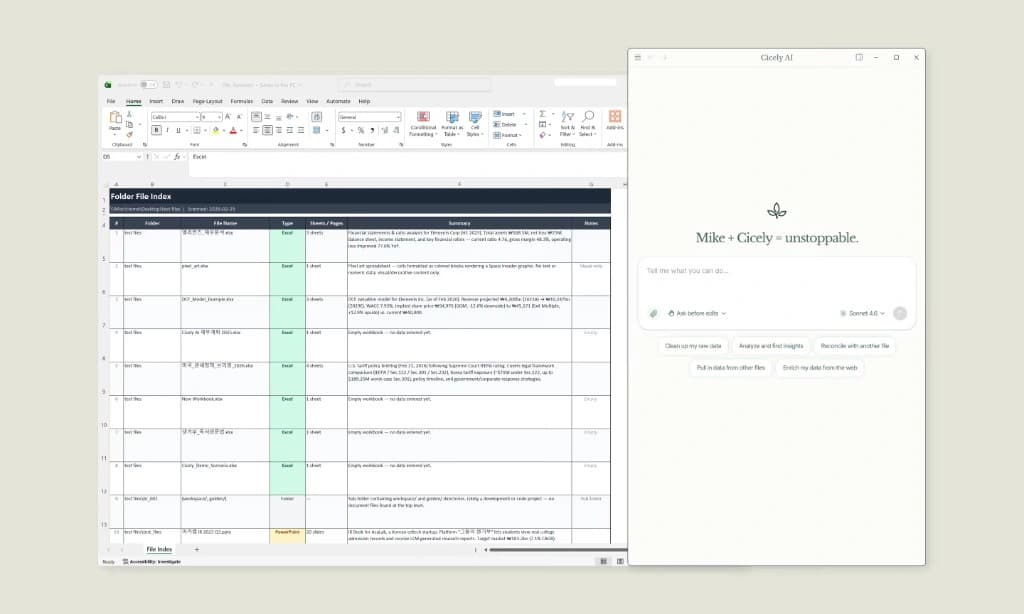
Reduce Excel Automation Friction with Cicely AI
Excel macros are powerful, but security warnings and execution restrictions often limit their usability in real-world environments. Files from external sources or systems governed by strict organizational policies can make macros difficult to use, adding extra time and complexity.
Cicely AI is a desktop-native AI coworker built specifically for Excel. Instead of fighting with macro settings and security prompts, describe what you need in plain English. Cicely reads your workbook directly and handles the task for you. No VBA knowledge required, no security warnings to bypass. Everything runs locally on your PC, so your files never leave your computer.