Blog
VLOOKUP Not Working? Fix #N/A, #REF!, and #VALUE! Errors
 Sik Yang · Dec 23, 2025
If your VLOOKUP formula suddenly returns #N/A, #REF!, or #VALUE!, you're not alone.
VLOOKUP is one of the most commonly used Excel functions-and also one of the easiest to break.
In most cases, the problem comes down to small issues like mismatched data types, extra spaces, or incorrect column references.
This guide explains why VLOOKUP stops working and shows you exact fixes for the most common errors. You'll also learn how to use VLOOKUP with multiple criteria and when to switch to better alternatives.
What is VLOOKUP in Excel?
VLOOKUP searches for a value in the leftmost column of a table and returns a related value from another column in the same row.
It's commonly used to pull prices, names, IDs, or categories from large datasets.
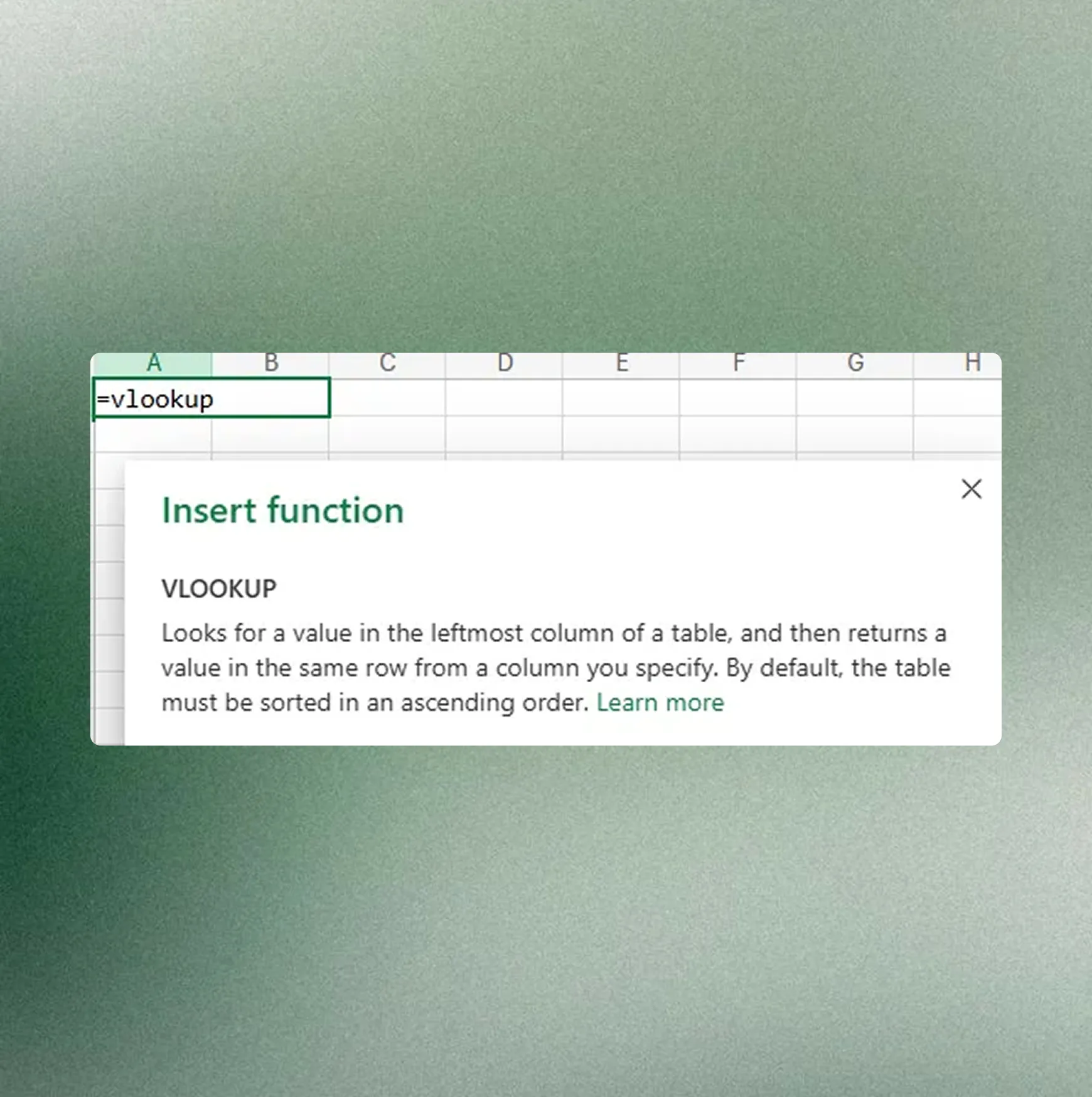
What is the VLOOKUP Function?
VLOOKUP stands for "Vertical Lookup." It pulls specific information from large datasets.
You tell Excel what to find, where to look, and what to return. Excel does the rest.
How to Use VLOOKUP: Step-by-Step
When you open the function wizard, you see four arguments. Remember these.
=VLOOKUP(Lookup_value, Table_array, Col_index_num, [Range_lookup])
- Lookup_value: What are you looking for?
- Table_array: Where are you looking? (The lookup value must be in the first column)
- Col_index_num: Which column number contains the value you want?
- Range_lookup: Exact match (0/FALSE) or approximate match (1/TRUE)
| Argument | What it does | Example |
|---|---|---|
| Lookup_value | The value Excel searches for | A2 or "John" |
| Table_array | The range containing your data | A:C or A1:C100 |
| Col_index_num | Which column to return (from left) | 2 |
| Range_lookup | Match type | FALSE (exact), TRUE (approximate) |
Key point: The lookup value must be in the first column of your table array. VLOOKUP can only return values from columns to the right.
Why VLOOKUP Isn't Working: Common Causes

The most common error messages have fixable causes - usually data types, hidden spaces, or column setup.
When VLOOKUP suddenly stops working, #N/A is the error you'll see most. It means "Not Available." Excel can't find your lookup value.
3 Common Reasons for VLOOKUP #N/A Error
| Issue | Why it happens | Quick fix |
|---|---|---|
| Value not found | Lookup value isn't in the first column | Check spelling and column order |
| Extra spaces | Hidden spaces break exact matches | Use TRIM() |
| Data type mismatch | Text vs number mismatch | Convert text or numbers to match |
VLOOKUP #REF! Error
#N/A isn't the only error. You might see wrong values or #REF! (Reference Error).
Missing absolute references ($) causes range shift:
When you copy formulas down, the table array moves with it. This breaks your range.
Lock your range with absolute references: $A$1:$C$100
Press F4 to add $ signs automatically.
Column number error when searching outside the range:
If your table array has 3 columns (A, B, C) but col_index_num is 4, you get #REF!.
Make sure your column number doesn't exceed the number of columns in your range.
VLOOKUP #VALUE! Error
#VALUE! means there's a syntax problem in your formula.
Common causes:
- Column number error: Col_index_num is less than 1 (like 0 or negative numbers)
- Missing reference range: Wrong range specification when referencing other files or sheets
VLOOKUP Across Different Excel Files
When you reference another Excel file with VLOOKUP, include the file path in your formula.
=VLOOKUP(A2, '[FileName.xlsx]SheetName'!$A:$C, 2, 0)
When the other file is closed:
VLOOKUP can execute formulas even when the referenced file is closed. But if you move or rename the file, formulas break.
Check formulas if you move or rename files.
Managing file paths:
Keep reference files in the same folder. Avoid complex paths like network paths.
VLOOKUP with Multiple Criteria in Excel
You don't need this for basic lookups, but it solves a specific problem: matching two conditions at once.
VLOOKUP searches for one value at a time. To match multiple criteria like Name AND Department, use a helper column.
How to Use VLOOKUP with Multiple Criteria
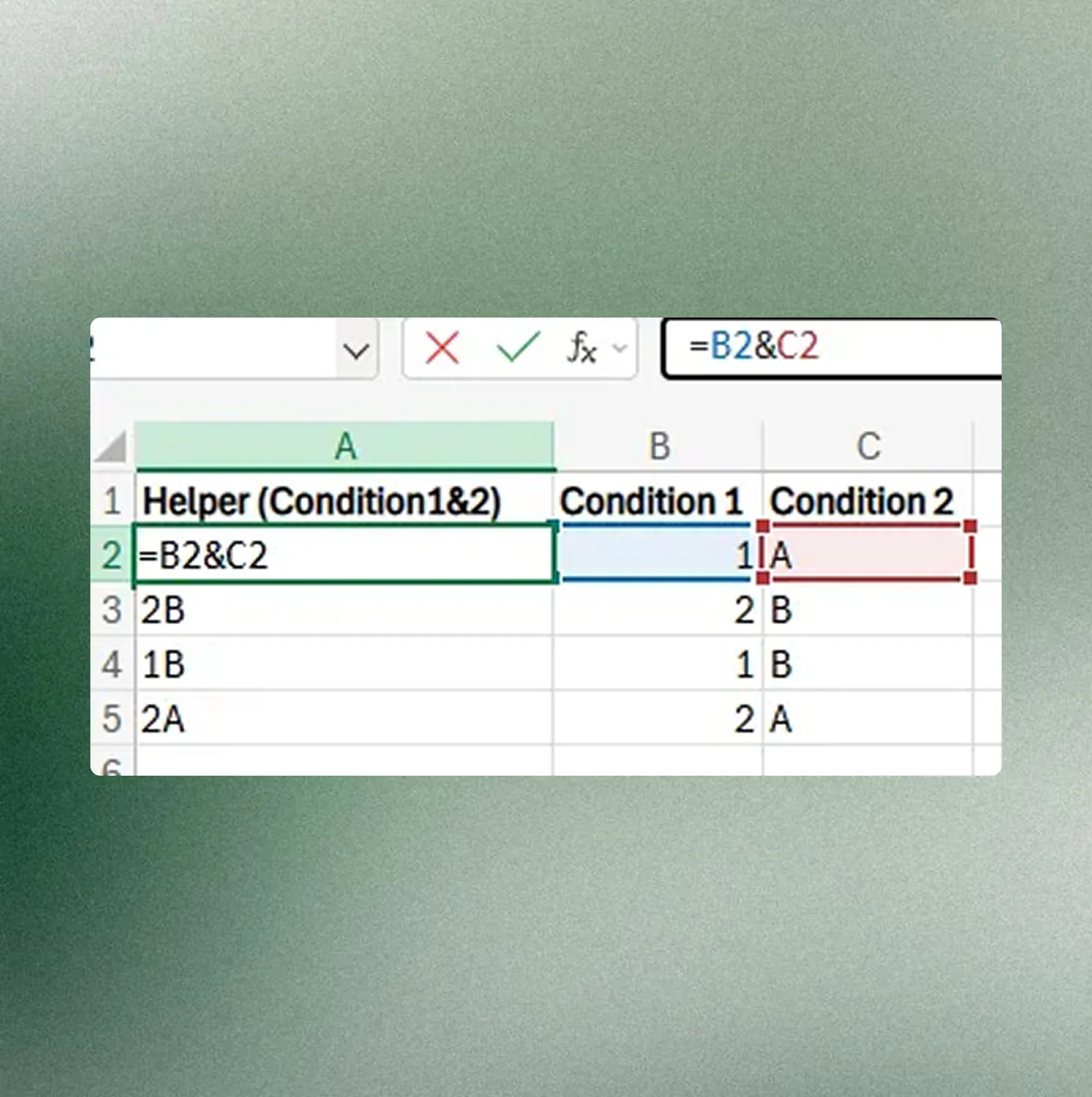
- Create a helper column on the far left of your data
- Combine two criteria:
=B2&C2 - In VLOOKUP, search for the combined value:
=VLOOKUP(SearchValue1&SearchValue2, A:D, 4, FALSE)
Common Mistakes with VLOOKUP Multiple Criteria
Wrong join order:
If your helper column uses Department&Name but you search for Name&Department, VLOOKUP won't find a match.
Missing absolute references:
Lock your range with $ or press F4. Otherwise, the range shifts when you copy the formula down.
Getting All Duplicate Values with VLOOKUP
This is optional but useful for data cleaning.
VLOOKUP always returns the first match. To find all duplicates, use the FILTER function (Office 365 and later) or INDEX/MATCH array formulas.
VLOOKUP Tips Without Breaking Your Formulas
These tips come from years of professional Excel work-they prevent the most common problems.
Hide VLOOKUP Errors with IFERROR
IFERROR keeps your reports clean by replacing error messages with custom text.
If #N/A errors look messy, wrap VLOOKUP in IFERROR:
=IFERROR(VLOOKUP(...), "No Data")
Errors now show "No Data" instead of #N/A. Your report looks cleaner.
Overcome VLOOKUP Limitations with INDEX/MATCH
You don't need this immediately, but when VLOOKUP's leftward limitation becomes a problem, INDEX/MATCH is your solution.
VLOOKUP can't retrieve data left of the lookup column.
Minor table structure changes can break your formulas. That's when INDEX and MATCH help.
Use MATCH to find the row position. Use INDEX to retrieve the value at that position.
=INDEX(ReturnRange, MATCH(LookupValue, LookupRange, 0))
This works regardless of left or right positioning. Column order changes won't break your formulas.
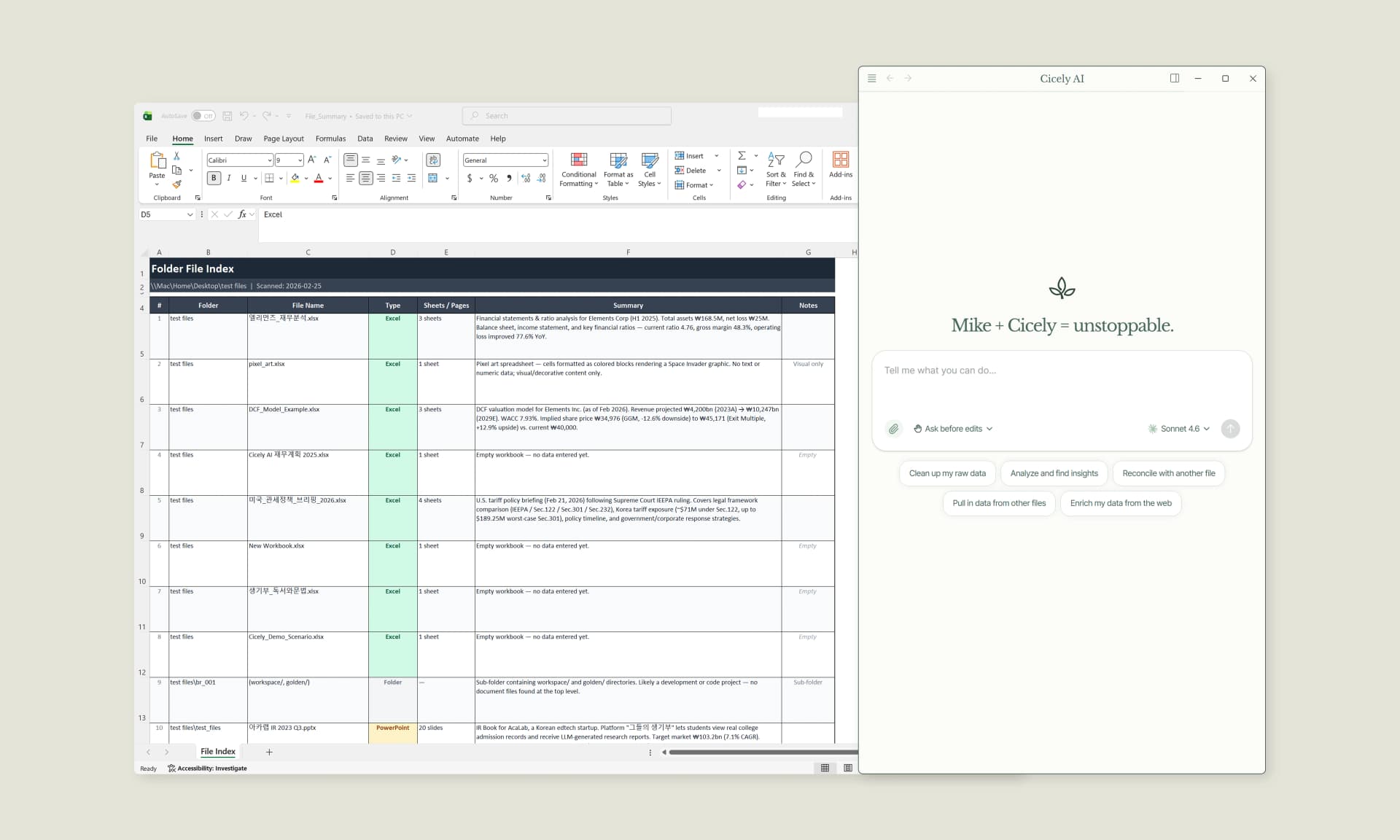
Work More Efficiently in Excel with Cicely AI
Cicely AI is a desktop-native AI coworker for Excel on Windows. It helps you clean up data, fix formulas, reorganize worksheets, and automate repetitive spreadsheet work with natural language while keeping files local on your PC.
Everything runs locally on your PC. No file uploads. No browser tools.