Blog
Conditions, Nested IF & IF Errors(IFERROR)
 Mike Yi · Jan 13, 2026
When working in Excel, you’ll often face situations where results need to change based on specific conditions rather than simple calculations. For example, you may want to display “Pass” when a score meets a certain threshold, or classify task status depending on progress values. Handling these decisions manually is time-consuming and prone to mistakes, especially as data grows.
That’s exactly what the IF function is for.
IF is easy to start with, but it gets harder when you add multiple conditions, text logic, and error handling.
In this guide, we’ll walk through how to use the IF function in Excel, from basic syntax to nested IF Excel formulas, IF formulas with text, and IF error handling—all explained in a practical, step-by-step flow.
What Is the Excel IF Function?
The Excel IF function evaluates whether a condition is met and returns different results based on that evaluation. It is one of the most commonly used logical functions in Excel and plays a central role in decision-making formulas.
While Excel is fundamentally designed for numerical calculations, the IF function adds meaning to those numbers. Instead of just displaying raw values, it helps answer questions like “Does this value meet the criteria?” or “Which category does this data belong to?”
For example, when determining whether a score passes a minimum requirement, the IF function automatically applies that rule across all rows.
Excel IF Function Syntax Explained
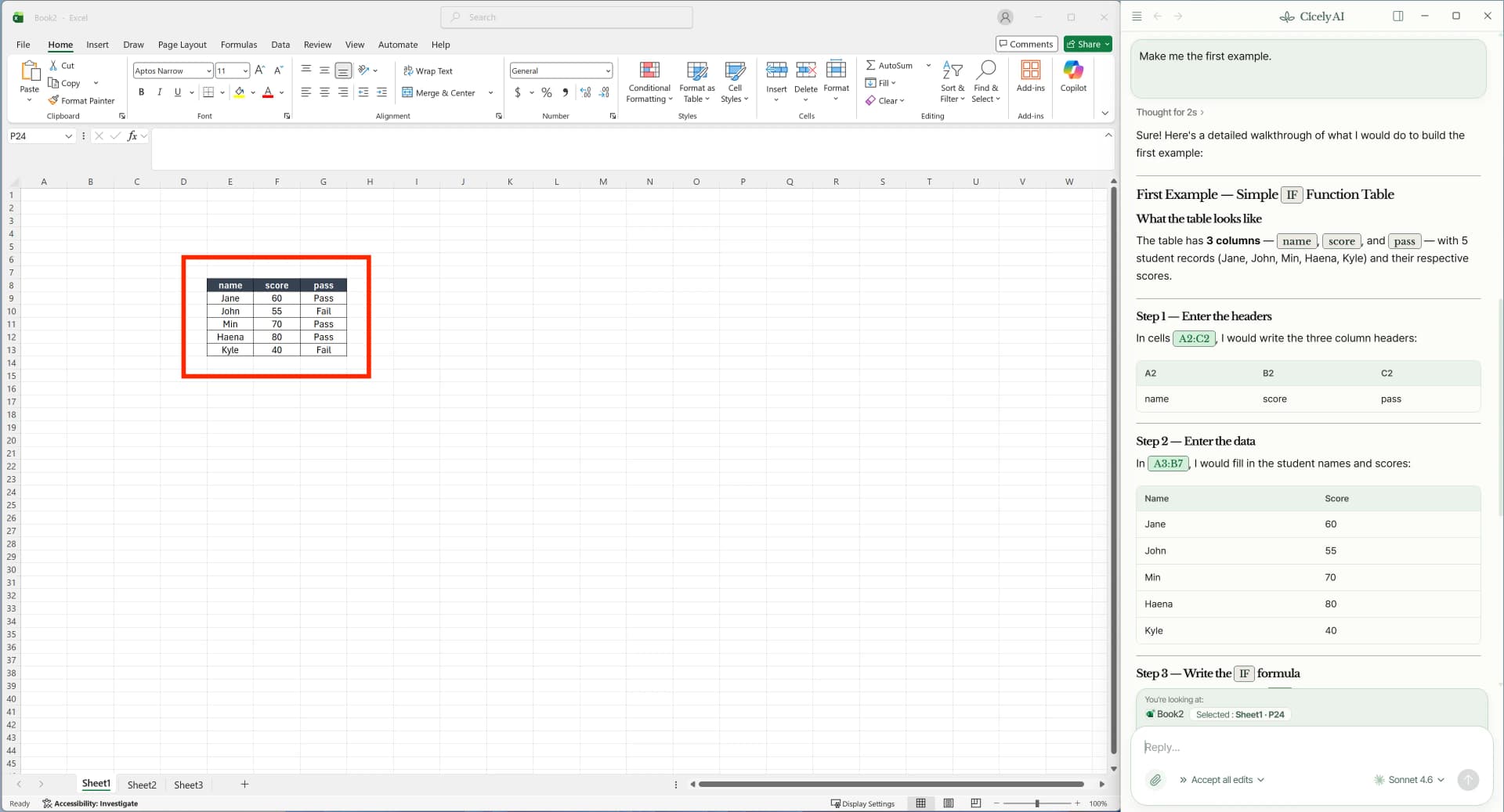
The basic syntax of the IF function in Excel is:
=IF(logical_test, value_if_true, value_if_false)
The logical test must always evaluate to either TRUE or FALSE.
For instance, the condition A1>=60 checks whether the value in cell A1 is greater than or equal to 60. If the condition is true, Excel returns the first value; if false, it returns the second.
Why the IF Function Is Used So Often in Real Work
The IF function is not just about calculations—it helps organize, classify, and interpret data. It is widely used in grade sheets, performance evaluations, sales reports, and task management spreadsheets where outcomes depend on predefined rules.
Once an IF formula is set up correctly, results automatically update whenever the underlying data changes. The IF function is a core tool in spreadsheets used for reporting and review.
Understanding IF Conditions Correctly
The most important part of any IF formula is the condition itself. If the logical test is incorrect, the formula will return incorrect results no matter how well the rest of the formula is written.
Common Comparison Operators in Excel IF Functions
Excel IF conditions commonly use the following operators:
| Operator | Meaning |
|---|---|
> | Greater than |
< | Less than |
= | Equal to |
>= | Greater than or equal to |
<= | Less than or equal to |
<> | Not equal to |
These operators work with numbers and dates in the same way. However, problems often occur when numbers or dates are stored as text, which prevents Excel from evaluating conditions properly.
Common Problems Caused by Incorrect Conditions
One of the most frequent issues in practice is an IF formula returning the same result for every row. This usually happens when the comparison range is incorrect or when the data types being compared do not match.
If a formula “looks right” but the output feels wrong, checking the condition logic and cell formats should be the first step.
Nested IF Excel: Handling Multiple Conditions
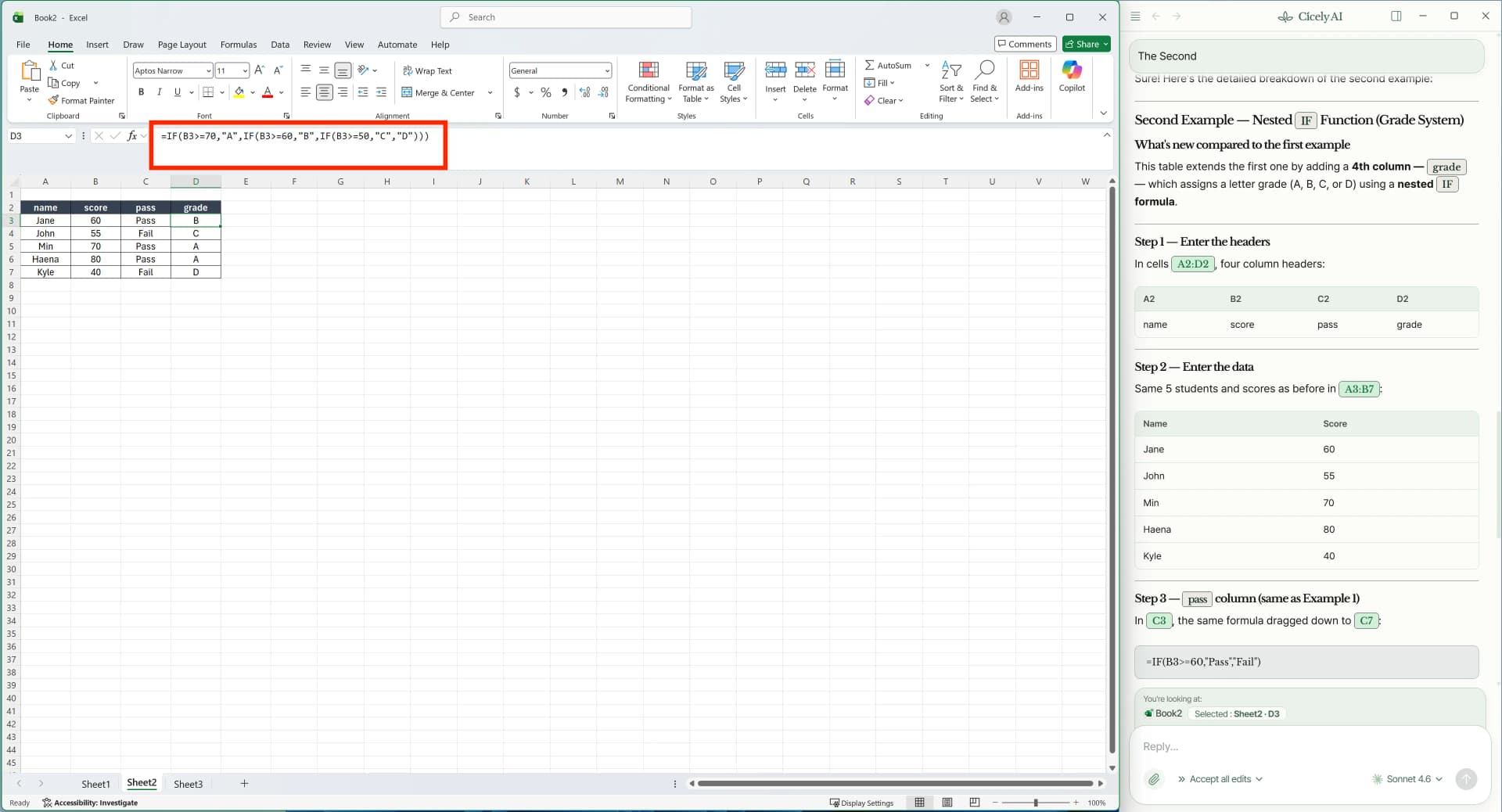
When more than one condition is required, you’ll need to use a nested IF Excel formula. This means placing one IF function inside another.
Nested IF Structure Explained
=IF(condition1, result1, IF(condition2, result2, result3))
If the first condition is false, Excel evaluates the second IF function and returns the appropriate result.
Things to Watch Out for with Nested IF Formulas
As conditions increase, nested IF formulas become longer and harder to read. Over time, maintaining or modifying these formulas can be difficult. For this reason, it’s important to clearly define condition priority before building the formula.
IF Formula with Text in Excel: Key Considerations
Text-based conditions tend to cause more errors than numeric ones.
Basic Rules for Text Conditions
When using an IF formula with text in Excel, text values must always be enclosed in double quotation marks. Additionally, invisible spaces can cause conditions to fail—“Completed” and “Completed ” are treated as different values.
What to Check When Text Conditions Don’t Work
Make sure the cell format is set to text if necessary. Using functions like TRIM or CLEAN to remove extra spaces or hidden characters before applying IF logic can significantly reduce errors.
IF Error Excel: Handling Errors Properly
Even when an IF formula is logically correct, errors such as #VALUE!, #N/A, or #DIV/0! may still appear. These errors become more frequent as spreadsheets grow more complex and can negatively impact readability and trust in reports.
Common Excel Errors in IF Functions
| Error | Meaning | Common Cause | Recommended Handling |
|---|---|---|---|
#DIV/0! | Division by zero | Dividing by 0 or blank cells | Use IF or IFERROR |
#VALUE! | Invalid data type | Text in numeric formulas | Standardize formats |
#N/A | Value not found | Lookup value missing | IFERROR with fallback |
#REF! | Invalid reference | Deleted rows or columns | Fix references |
#NAME? | Name not recognized | Function name typo | Check spelling |
#NUM! | Invalid numeric value | Unsupported calculations | Limit ranges |
Cleaning Up Errors with IFERROR Excel
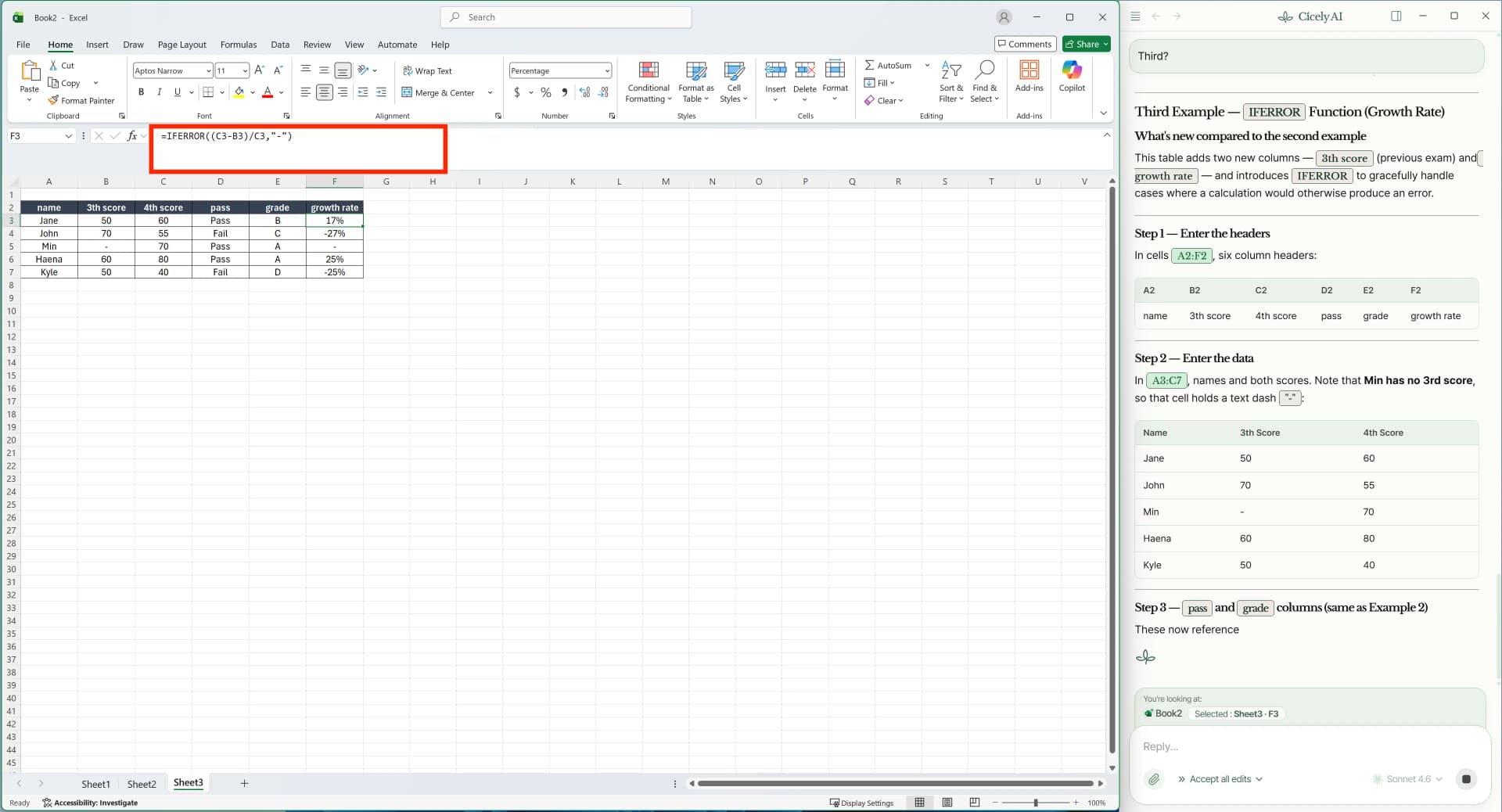
=IFERROR(formula,"Error")
The IFERROR Excel function checks whether a formula returns an error such as #N/A, #VALUE!, #REF!, or #DIV/0!. If an error is detected, it replaces it with a user-defined value. If no error occurs, the original result is returned.
Because it prevents error codes from appearing directly in reports, IFERROR is considered essential in professional Excel documents.
Frequently Asked Questions About the Excel IF Function
Q1. Can I handle multiple conditions at the same time using the Excel IF function?
Yes, you can. When working with a single condition, the basic IF function is sufficient. However, if you need to evaluate multiple conditions, you can use nested IF formulas or combine the IF function with AND or OR functions.
That said, using too many nested IF statements can make formulas difficult to read and maintain, so it’s often better to simplify conditions or replace them with alternative functions when possible.
Q2. Why doesn’t a text condition work correctly in an Excel IF formula?
Text conditions often fail due to issues with quotation marks (" "), extra spaces, or hidden characters. Note that the standard = comparison in IF is case-insensitive, so "completed" and "Completed" are treated as the same value. If you need case-sensitive matching, use the EXACT function instead.
For example, "Completed" and "Completed " are treated as different values in Excel. In such cases, you should remove extra spaces using the TRIM function or double-check the text values used in your formula.
Q3. What is the easiest way to handle errors in IF formulas?
The simplest solution is to use the IFERROR function.
IFERROR detects any error that occurs during formula evaluation—such as #N/A, #VALUE!, #REF!, or #DIV/0!—and replaces it with a value you specify. If no error occurs, it returns the original result.
In practice, IFERROR is commonly used to keep worksheets clean and improve the overall quality of reports.
Mastering Excel IF Functions
Although the Excel IF function appears simple, effective use requires understanding conditions, managing nested IF logic, handling text comparisons, and applying proper error handling together.
Work More Efficiently in Excel with Cicely AI
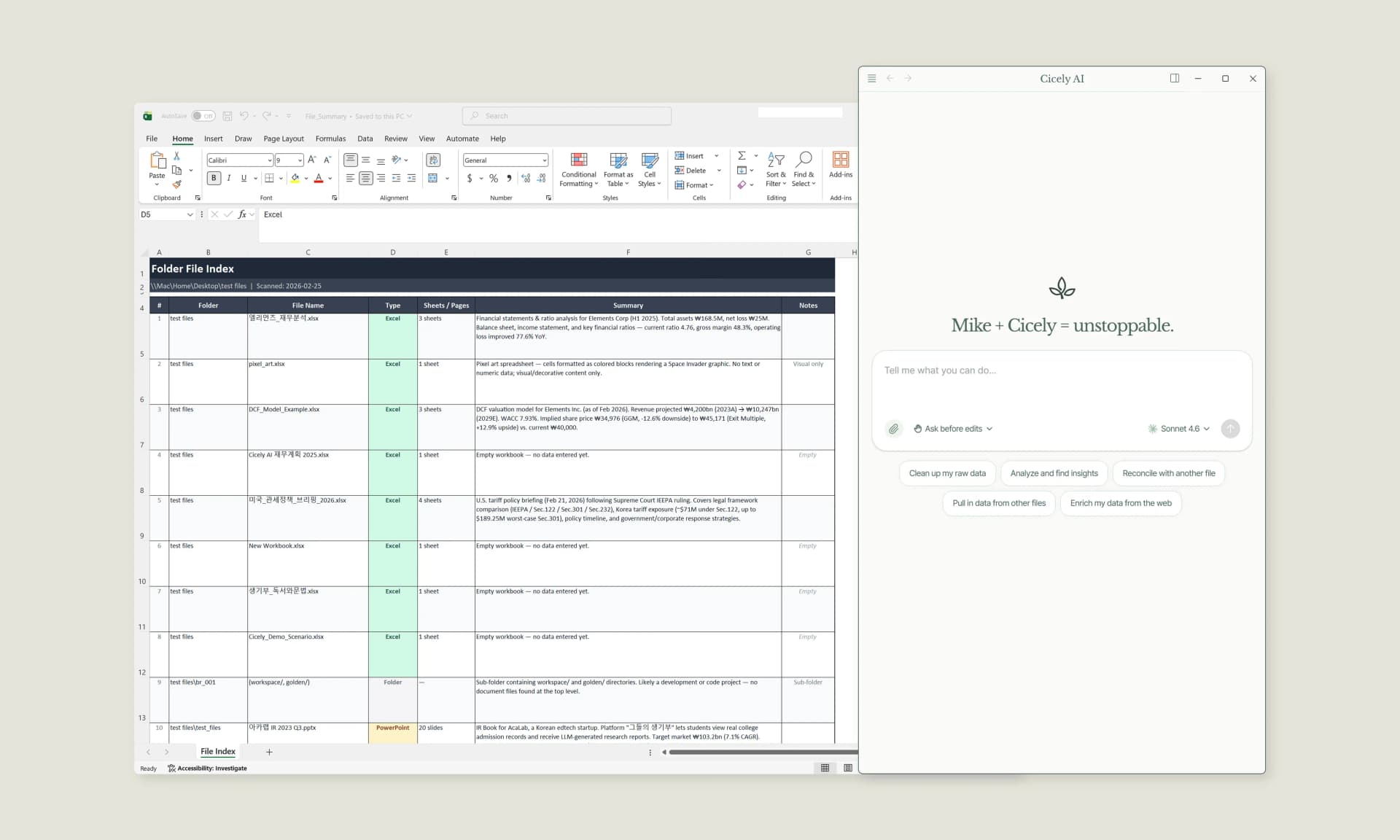
IF formulas are easy to write once you know the syntax, but they still take time to maintain. Nested logic gets harder to read, and small changes can trigger unexpected errors.
Cicely AI is a desktop-native AI coworker for Excel. Tell Cicely what you want in plain English, such as “Write an IF formula that labels Pass/Fail” or “Convert this nested IF into a clearer structure,” and review the suggested steps. Everything runs locally on your PC, with no file uploads.